
I tested a range of affordable drawing tablets — from small pen pads to entry-level displays — and picked the ones that gave me the best blend of pen feel, features, and real-world reliability.
I spent time using six budget tablets across Windows, macOS, Linux, Android, and Chromebook to find the models that actually make digital drawing enjoyable without breaking the bank.
In the sections below I explain what stood out about each tablet, who I’d recommend it to, and the small practical tradeoffs I encountered while working in Photoshop, Krita, Blender, animation apps, and casual sketching sessions.
I compared pen feel, pressure sensitivity, tilt support, driver stability, and real-world connectivity. For me, driver behavior and how a pen feels on the surface matter more than a spec sheet full of numbers.
1. Wacom Intuos Small Graphics Drawing Tablet (Wired) – Best Overall
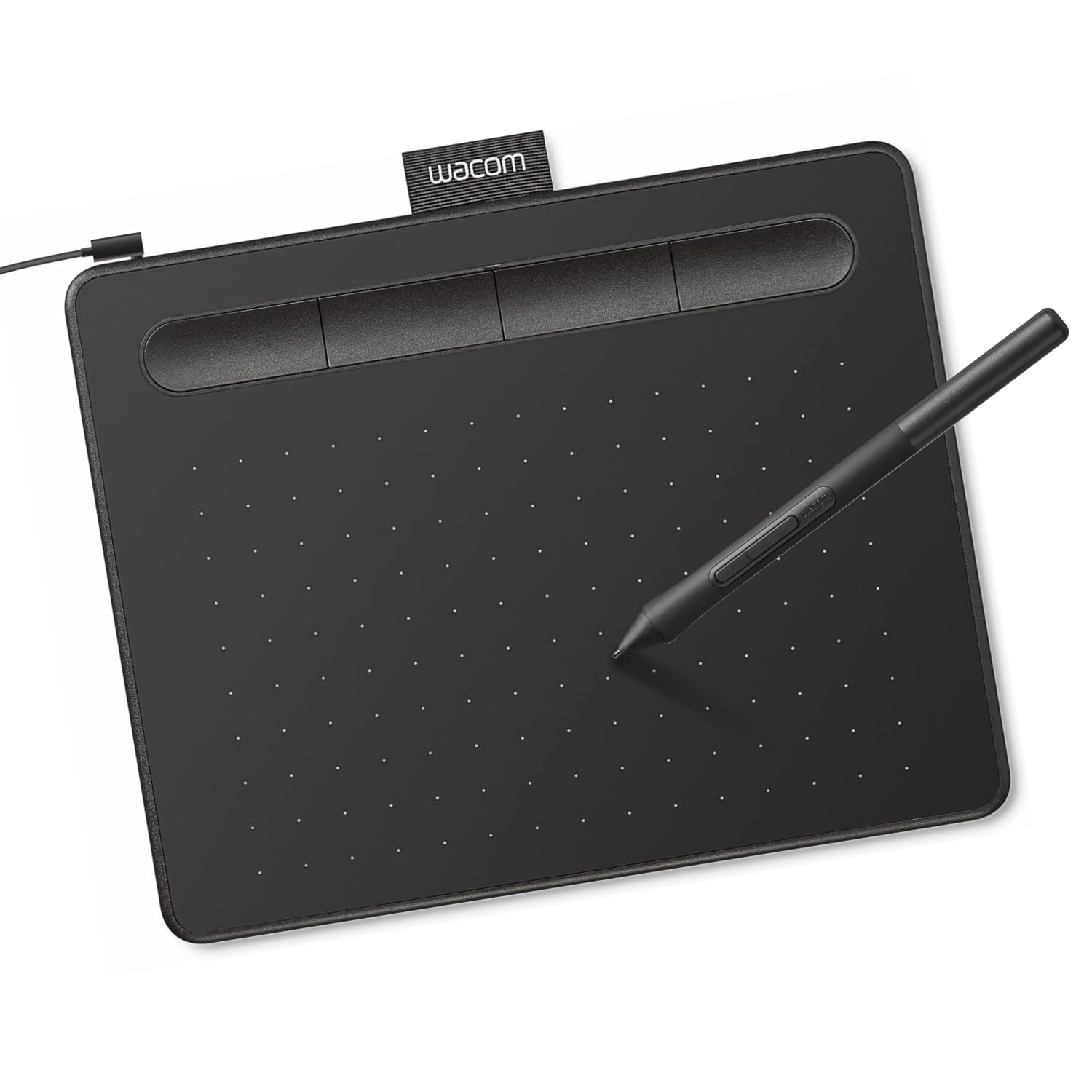
A compact, reliable pen tablet with Wacom’s battery-free EMR pen and a useful software bundle that’s ideal for beginners and hobbyists.
Why I picked it: Solid pen feel, bundled software, and Chromebook compatibility at a compact size.
Best for: Casual artists, note-taking, and photo editing on small workspaces.
Affordable entry-level option with strong brand support.
Pros
- Battery-free EMR pen
- Software and online training included
- Chromebook and Android compatible
- Compact and travel-friendly
Cons
- Small active drawing area
- Pen buttons click accidentally
- Nibs wear with heavier use
- Occasional pressure drop under load
My take
I appreciate the pen-on-paper feel Wacom delivers — the EMR pen glides naturally and doesn’t need charging.
The software bundle and online tutorials got me sketching right away, and Chromebook support is genuinely useful when I want a light, portable setup.
Bluetooth can feel a touch less responsive, so I usually keep it wired for smoother lines and fewer input hitches.
For my photo-editing and quick sketch sessions the small size is an advantage; if you need large sweeping strokes, expect to work with mapping or scale.
2. XPPen Deco 01 V3 Drawing Tablet (10 x 6.25″) – Best Value: Large Active Area
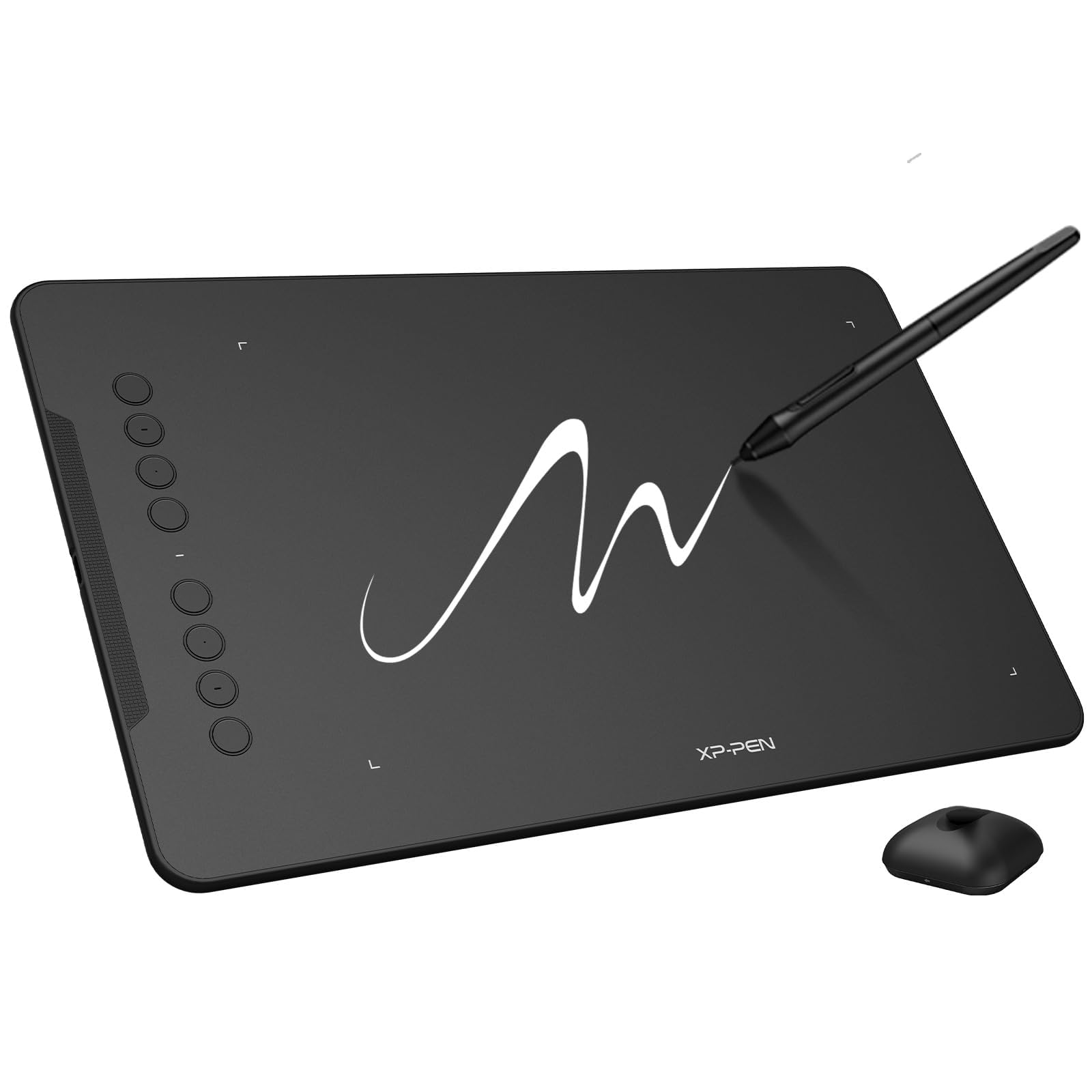
A thin, roomy tablet with a high-resolution stylus, tilt support, and customizable hotkeys — great when you want more canvas without spending much.
Why I picked it: Big active area and advanced pen tech at a very accessible price.
Best for: Beginners who want a roomy working area and advanced pressure/tilt.
Excellent value for a full-size entry tablet.
Pros
- 16,384 pressure levels
- 60° tilt support
- Large 10×6.25" active area
- 8 customizable shortcut keys
Cons
- Occasional connection drops
- Cable can be fiddly
- Artist glove may run small
My take
I liked how the larger surface changed the way I draw — fewer cramped strokes and a more natural arm movement compared to tiny pads.
The upgraded stylus gives me smooth shading and convincing line variation, and the tilt response helps when I want broader pencil-like strokes.
I ran this on Mac and Linux with no trouble; on Linux the driver tools were surprisingly good and let me map keys quickly.
My only gripe was intermittent disconnections on one machine — swapping cables fixed it for me, but it’s something to test right after unboxing.
3. HUION HS610 Graphic Tablet (10 x 6.25″) – Best for Animation & Detail Work
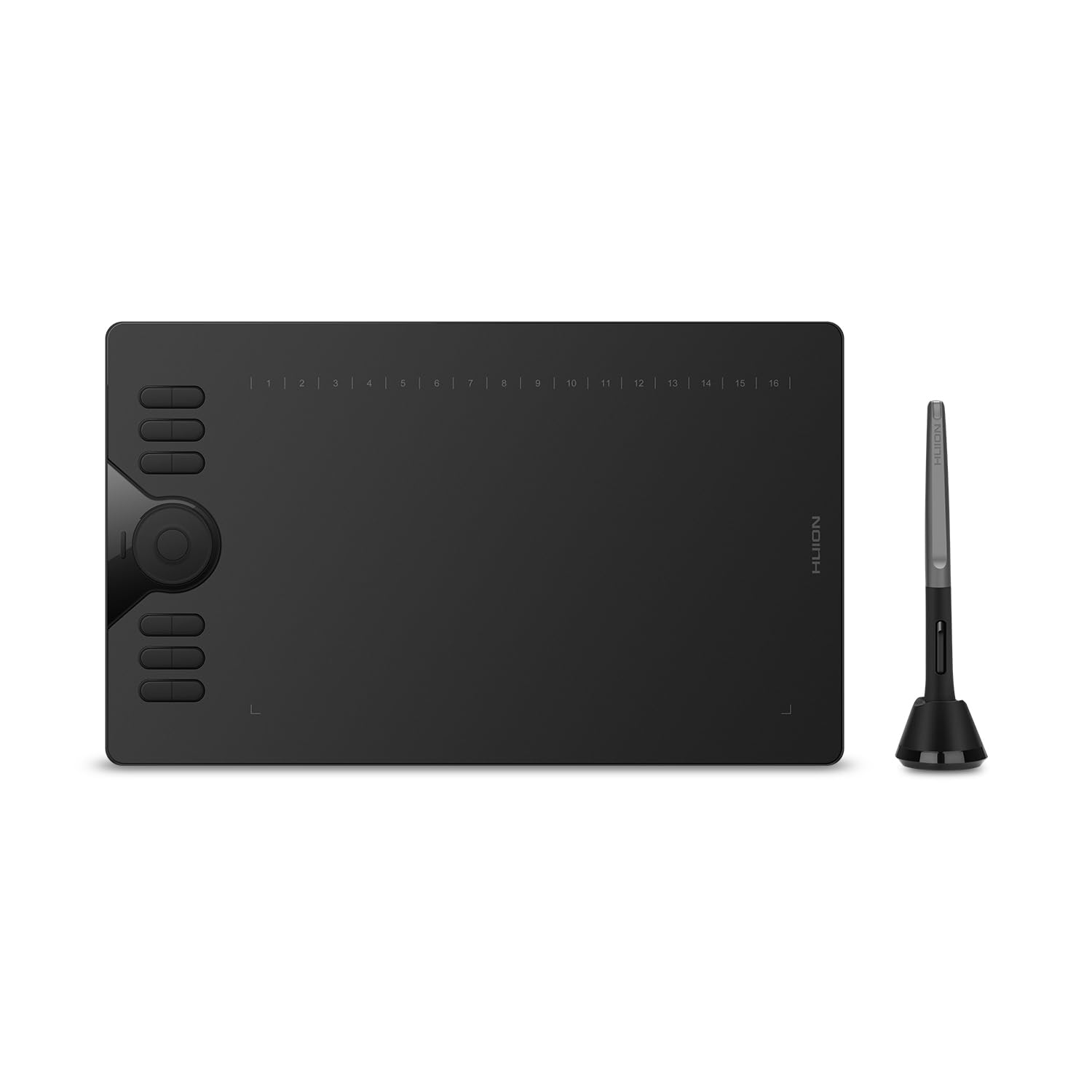
A feature-packed tablet with an 8192-level pen, a touch ring for quick canvas control, and plenty of customizable keys — great when precision and workflow shortcuts matter.
Why I picked it: Tilt support plus a touch ring makes detailed shading and zooming fast.
Best for: Animators and illustrators who need precise pressure and quick canvas controls.
Strong value for professionals on a budget.
Pros
- 8192 pressure levels
- ±60° tilt function
- Multifunctional touch ring
- 12 customizable shortcut keys
Cons
- Driver installation can be tricky
- Initial setup requires patience
My take
After wrestling with drivers briefly, I found the HS610 responds beautifully — pressure is consistent and tilt gives me natural-looking shading.
The touch ring became my go-to for zooming and brush-size changes, which sped up my workflow in animation apps like Toon Boom.
It’s lightweight and portable, and once the driver settled on my machine it felt rock-solid for long creative sessions.
If you’re willing to spend a little time on setup, this tablet gives you pro features for a modest outlay.
4. XPPen Artist13.3 Pro (13.3″ Display) – Best Screen Tablet
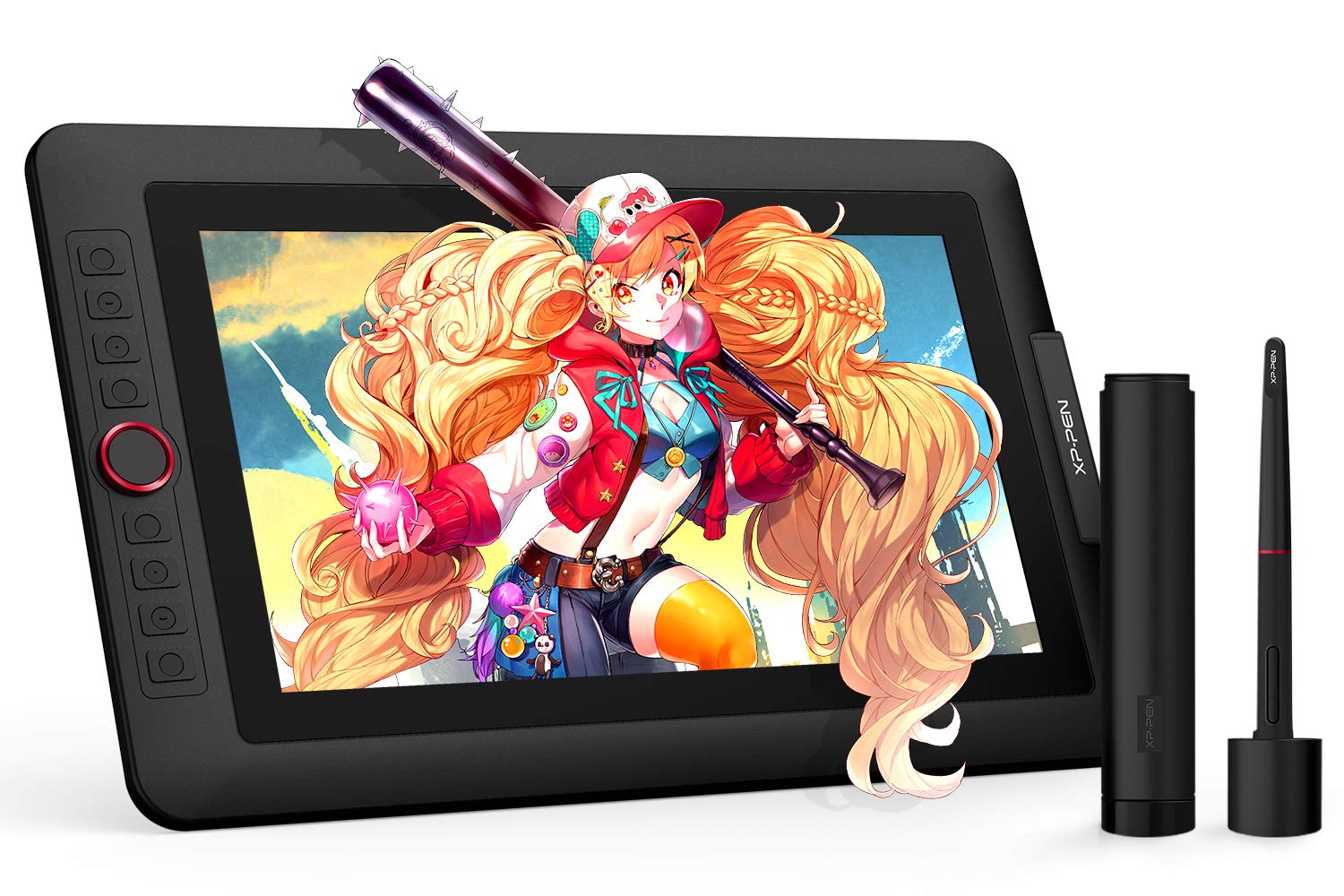
A compact pen display with a fully laminated FHD screen, a useful red dial, and good color coverage — it brings your strokes directly onto the screen at a budget-friendly tier.
Why I picked it: Direct-on-screen drawing with a laminated panel and tactile dial control.
Best for: Hobbyists and aspiring artists who want an affordable display tablet.
More expensive than pen pads but cheaper than high-end displays.
Pros
- Fully-laminated display reduces parallax
- High color gamut coverage
- Red dial for quick adjustments
- 8 customizable shortcut keys
Cons
- Driver and cable setup can be fiddly
- Pen jitter can appear initially
- Less precise than top-tier displays
My take
Seeing my strokes directly on the 13.3" screen changes the way I sketch — it’s more immediate and intuitive than a pen pad.
The fully-laminated panel cut parallax enough that I rarely had to compensate, and the red dial rapidly became my favorite control for brush size and zoom.
Setup required driver downloads and a few cable swaps, and I had to work with support once to eliminate jitter — after that it behaved well.
For the money this is a joyful screen tablet for learning and hobby work; I’d only advise professionals to compare against pricier displays for color-critical projects.
5. XPPen Updated Deco 01 V3 (10″ Active Area) – Best for OSU & Students
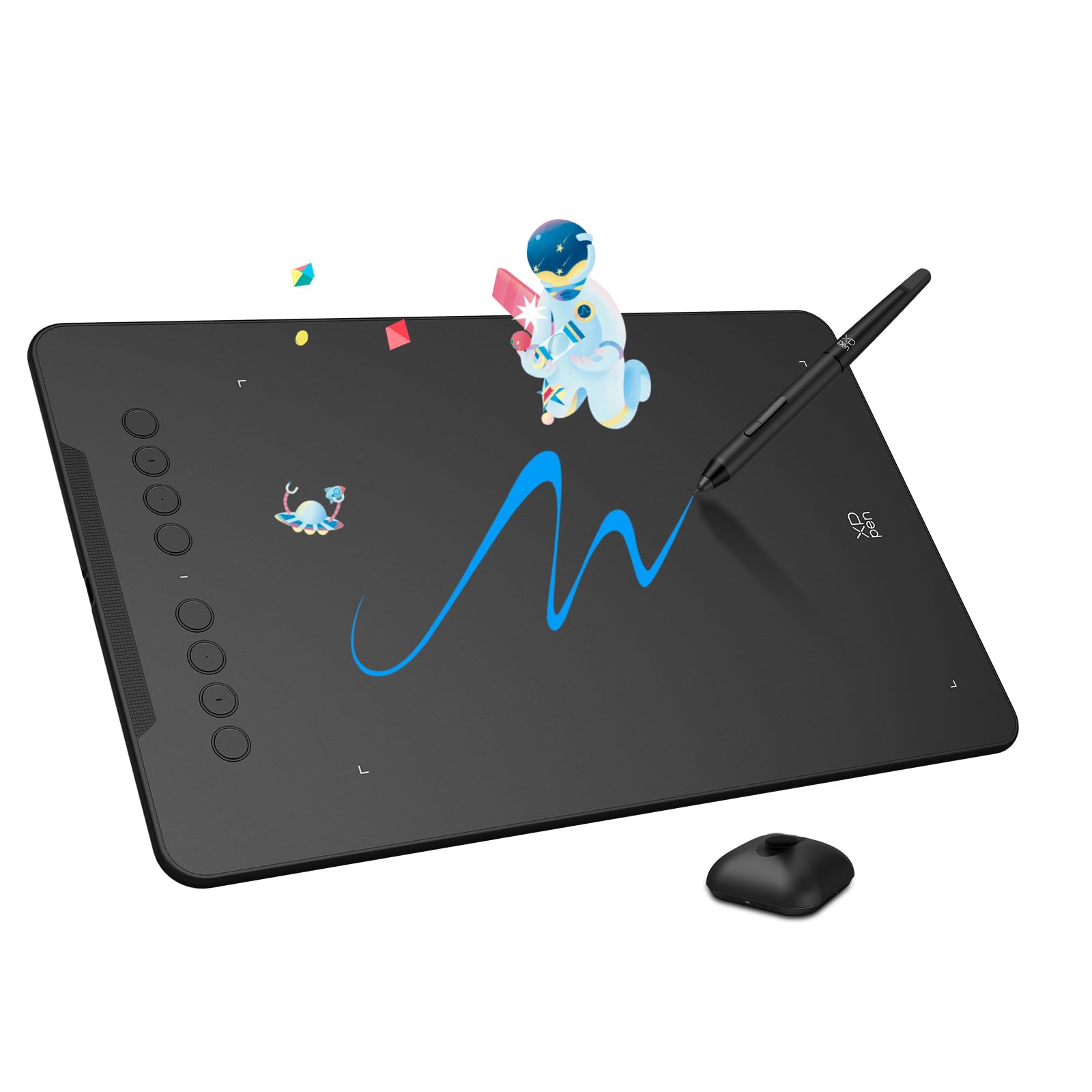
A compact version of the Deco line tuned for scribbling, gaming rhythm input like OSU, and school use — high-pressure pen with a student-friendly footprint.
Why I picked it: Small, responsive area and high report rate make it ideal for precision tasks and OSU.
Best for: Students, OSU players, and artists who work in cafes or classrooms.
Budget-friendly and portable — great for schoolbags.
Pros
- 16,384 pressure sensitivity
- Ambidextrous programmable keys
- Compact 10" active area
- Battery-free pen
Cons
- Wired connection required
- Upright pen holder not ideal
My take
I carried this to cafés and classes; the 10" active area hits a sweet spot between portability and working space.
The high pressure sensitivity and tilt support felt more refined than I expected at this tier, and the shortcut keys help when I’m multitasking.
It’s wired, so I plug it in and go — no charging worries — and I appreciated how quickly I could set it up and start drawing.
If you want something to toss in a bag and use across devices, this Deco model is a solid pick.
6. 10 Inch LCD Colorful Writing Graphic Tablet — 2 Pack – Best for Kids
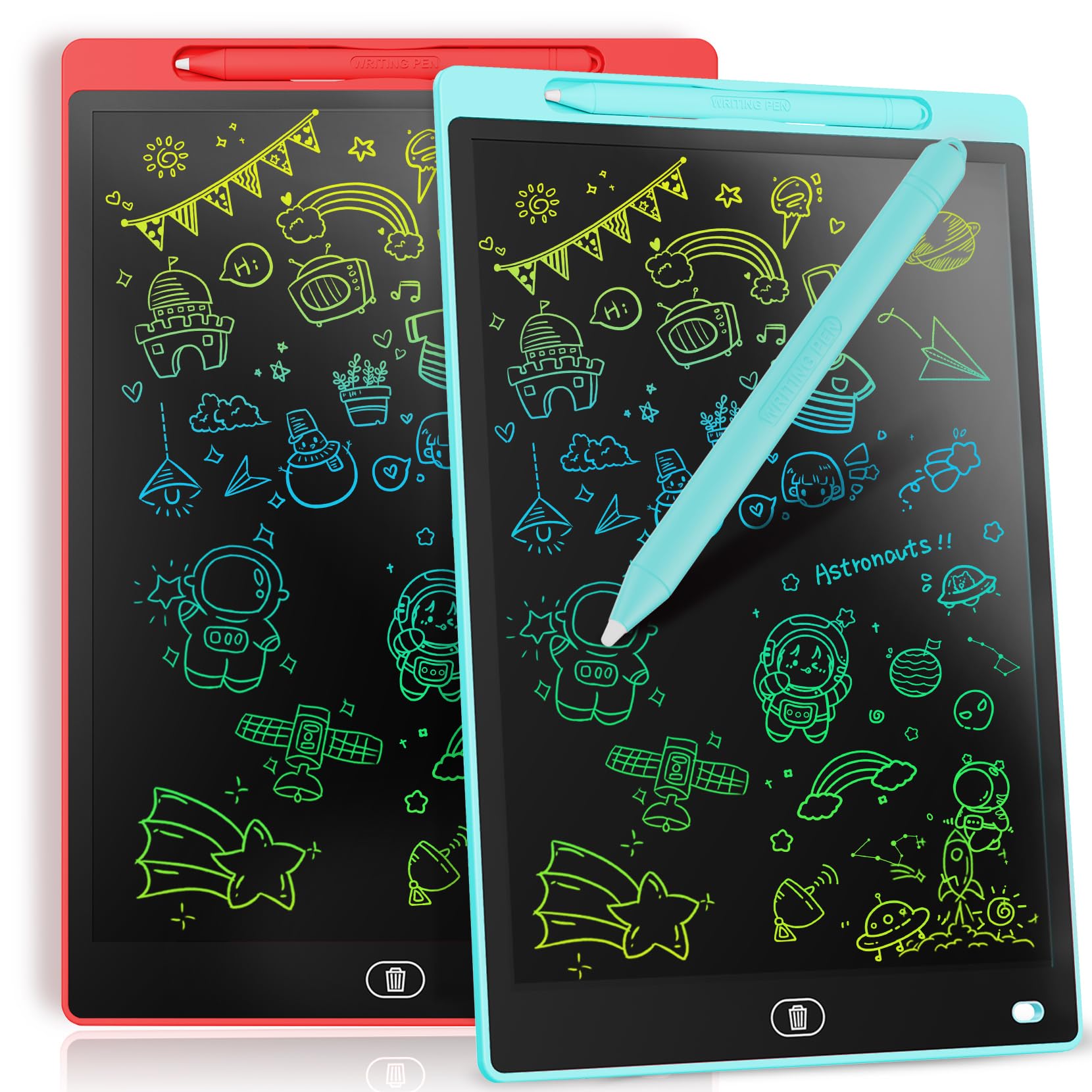
An ultra-affordable, colorful, erasable LCD drawing board that’s perfectly suited to toddlers and early creatives who just want a simple, reusable surface.
Why I picked it: Very low-cost, colorful display that keeps kids doodling without paper mess.
Best for: Young children, travel, and screen-free drawing activities.
Cheapest option — perfect as a gift or travel doodle board.
Pros
- Colorful pressure-sensitive lines
- Erasable with lock switch
- No blue light or radiation
- Portable and durable for kids
Cons
- Not suitable for pressure-sensitive art
- Thin plastic may age with heavy use
My take
I handed these to my nieces on a road trip and they loved them — bright lines, easy erase, and no paper mess.
The built-in battery lasts a long time for casual scribbling and the lock button prevents accidental clears during longer drawings.
They’re not drawing tablets in the art-app sense, but for kids and simple sketching they’re unbeatable for value and convenience.
If you want to introduce little ones to drawing without screens or paper waste, these are exactly the kind of thing I reach for.
How I Choose a Budget Drawing Tablet
Pressure Sensitivity & Tilt
I look at pressure levels and tilt support first because they affect how natural your strokes feel. Higher pressure counts and tilt make shading and brush control much closer to real pencils.
For beginners, 8192 levels and tilt are already very capable; beyond that, differences become more incremental unless you’re doing professional illustration work.
- 8192 levels is a practical sweet spot
- Tilt is useful for pencil-like shading
- Battery-free pens remove charging hassles
Active Area & Portability
I weigh how much desk space I have against portability: bigger active areas let me make broader strokes, but compact tablets are easier to take to classes or cafés.
If I’m traveling, I prioritize thinness and weight; if I’m animating or doing detailed illustration, I choose a larger active area.
- Large area for studio work
- Compact for portability
- Consider how mapping affects mouse movement
Screen vs Non-Screen Tablets
I prefer screen tablets when I want an immediate, intuitive drawing experience — seeing the stroke where my hand is — but they cost more and need extra setup.
Non-screen tablets (pen pads) are lighter, cheaper, and often more durable for classroom or travel use.
- Screen tablets reduce parallax if laminated
- Pen pads are better for tight budgets
- Expect extra cables and drivers with displays
Connectivity & Driver Stability
I test tablets across my platforms because driver stability makes or breaks the experience. Some tablets work flawlessly on Linux, others need driver tweaks.
USB-C and bundled adapters are great for modern laptops; Bluetooth can be convenient, but I found wired connections more consistently responsive.
- Check OS compatibility before buying
- Prefer wired for fastest, consistent input
- Install and test drivers immediately after unboxing
Pen Comfort & Extras
I pay attention to pen weight, button placement, and whether extra nibs or a glove are included. Small annoyances like upright pen holders or stiff gloves add up.
A pen that encourages a light touch saves tablet surface wear and gives better long-term performance.
- Look for extra nibs in the box
- Test pen buttons for accidental clicks
- Consider a textured screen protector for display tablets
Frequently Asked Questions
Will these tablets work with my iPad?
I don’t assume iPad compatibility — most of these models target Windows, macOS, Linux, Android, and Chromebook. If iPad support is crucial, I check the listing or manufacturer site first because some tablets require adapters or specific iPad-enabled drivers.
Do I need to install drivers before using the tablet?
I always install the latest drivers before starting a creative session. Some tablets work immediately as basic pointing devices, but installing drivers unlocks pressure, tilt, shortcut mapping, and better stability.
Are cheap tablets good for learning digital art?
From my experience, yes — many budget tablets give you the pen feel and pressure control you need to learn technique. I’d focus on pen responsiveness and driver stability rather than chasing high-end specs at first.
Final Take
I found that the best budget tablet depends on how you work: choose a pen pad for portability, a larger active area for detailed strokes, or a small display if you want direct-on-screen drawing.
If you want my short pick: the Wacom Intuos is the most consistent all-rounder, the Deco and Huion give you more active area and advanced pen features for slightly more, and a simple LCD doodle pad is perfect for kids and travel.
I recommend testing drivers and cables as soon as your tablet arrives — that small step saved me frustration and got me drawing sooner.