
I tested a range of starter tablets, gloves, and kid-friendly boards to find reliable, beginner-friendly tools that actually make drawing digital art easier.
I spent hands-on time with each tablet and accessory on this list so I could recommend practical options for beginners. From compact pen tablets to a pen display and a kid-friendly LCD board, I focused on ease of setup, pen feel, and real-world usability.
Below I explain which device I reach for depending on my workspace, whether I need portability, pressure control, or a simple tool for kids and notes.
I compared devices by how natural the pen feels, the size of the active area, connectivity and driver stability, and any bundled extras like software, stands, or gloves.
1. Wacom Intuos Small Graphics Drawing Tablet (Black, Wired) – Best Overall Starter Tablet
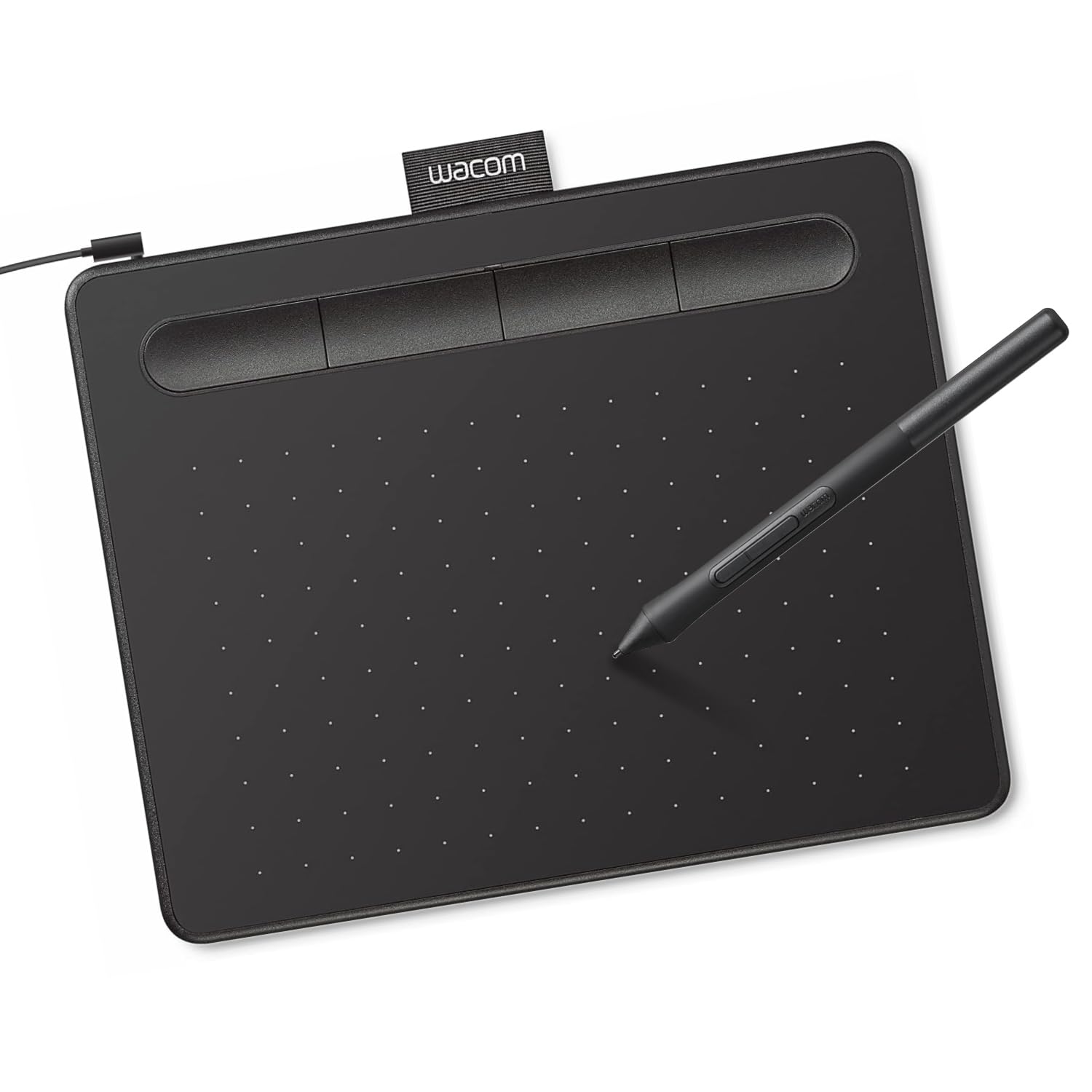
A compact, industry‑standard pen tablet that delivers a pen‑on‑paper feeling, bundled creative software, and Chromebook compatibility.
Why I picked it: I picked it because its battery‑free EMR pen and bundled software make starting painless.
Best for: Beginners who want a dependable pen feel without a steep learning curve.
I view this as an affordable beginner staple.
Pros
- Battery‑free EMR pen
- Feels like pen on paper
- Includes creative software and training
- Chromebook and Android compatible
Cons
- Small active area
- Pen buttons click accidentally
- Nibs wear with heavy pressure
- Occasional pressure dropout
My take
I used the Intuos Small for sketching, photo edits, and note‑taking. The pen feels familiar — smooth and responsive — and the whole setup is compact enough for my laptop bag.
Bluetooth versions can feel a touch less responsive, so I usually plug in the cable for the snappiest cursor tracking. I also noticed the pen has two buttons that are easy to hit by accident while drawing, so I reprogrammed them for shortcuts I use less often.
Nibs wear down if I press too hard, so I trained myself to use a lighter touch. Pressure can occasionally stutter during long sessions, but overall it’s a reliable tablet that outperforms using a mouse and comes with useful software for getting started.
2. HUION Artist Glove (One Unit, Fits Right or Left Hand) – Best Accessory
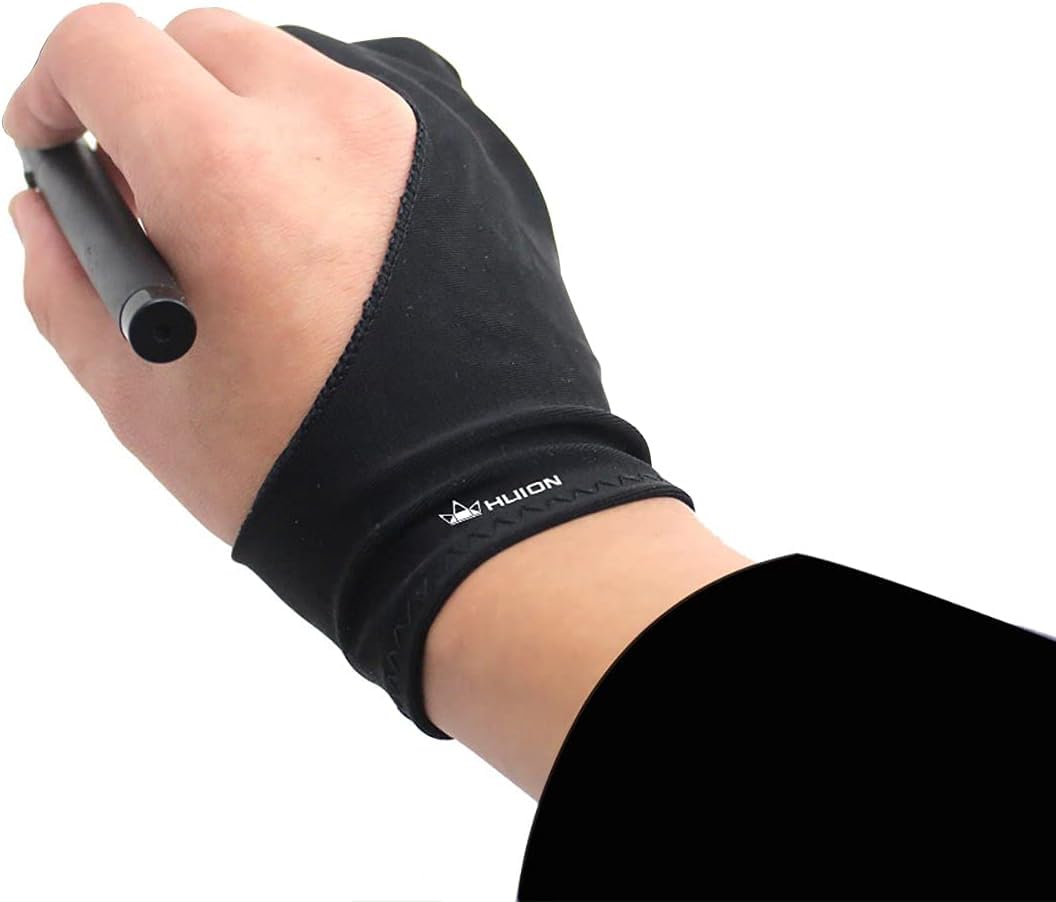
A simple two‑finger Lycra glove that reduces smudges and friction while drawing on tablets or displays.
Why I picked it: I chose it because it keeps my palm from smudging the surface and reduces drag.
Best for: Artists who rest their hand on the tablet while drawing.
I treat this as a cheap, essential accessory.
Pros
- Reduces smudges and friction
- Works on left or right hand
- Soft, flexible Lycra material
- Black color resists visible soiling
Cons
- One‑size can fit snugly
- Printed text may peel over time
- Doesn't stop touchscreen accidental touches
My take
I wear the glove for long sketch sessions and found it noticeably smoother than bare skin sliding on the surface. It’s easy to pull on and off, and stays put while I work.
The glove is comfortably thin so I don’t lose pen control, but the single size can be a bit tight if you have very large hands. After a lot of use the branding on the glove may start to fade, but the fabric itself holds up well.
For the price I pack one in my gear bag whenever I travel with a tablet — it’s one of those small changes that makes long drawing sessions more comfortable.
3. XPPen Deco 01 V3 Drawing Tablet (10 x 6.25 in, 16K Pressure) – Best Value Large Tablet
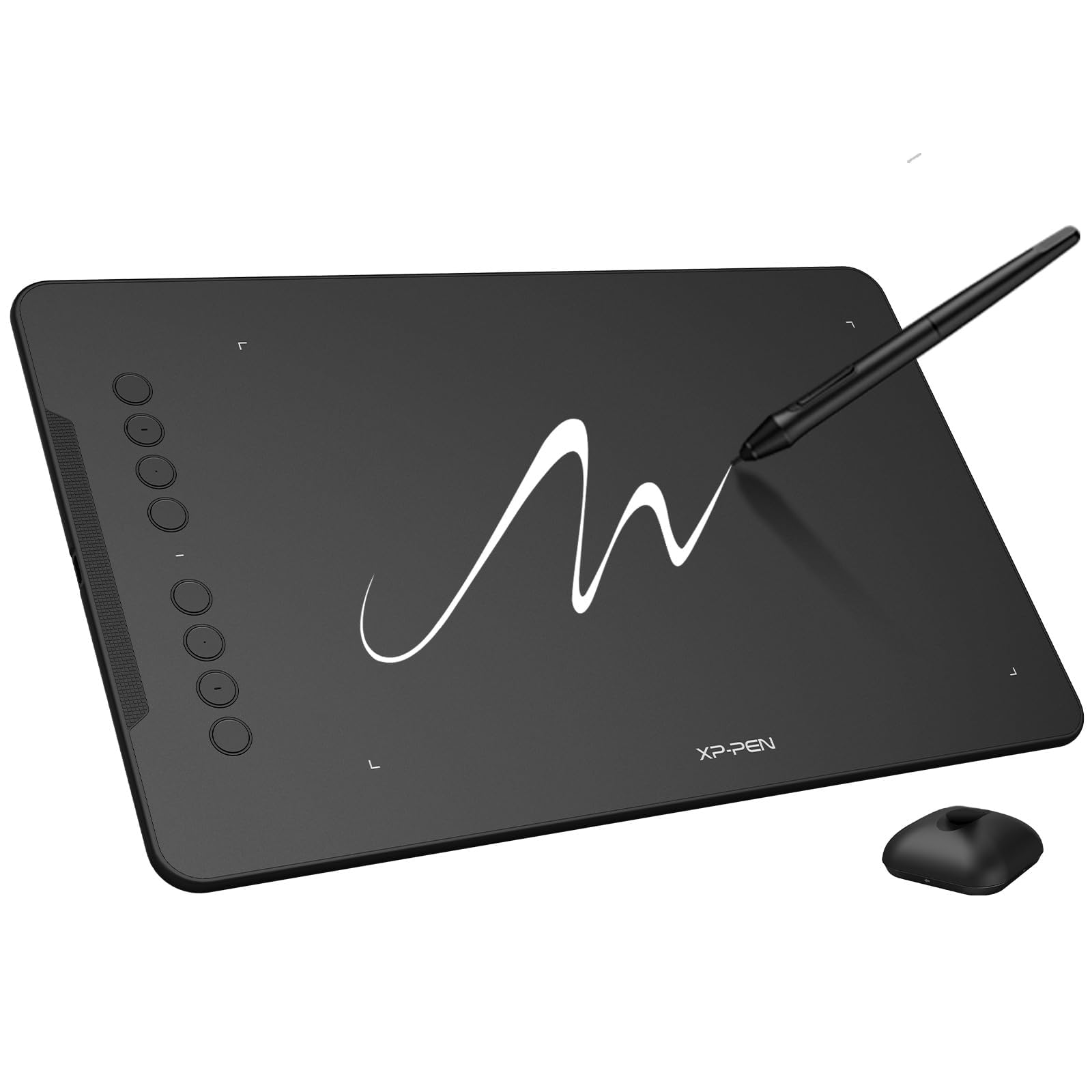
A roomy active area, 16,384 pressure levels, tilt support, and multiple shortcut keys make this a standout value for beginners who want space to draw.
Why I picked it: I picked it for its high pressure sensitivity and generous drawing surface.
Best for: Beginners who want a large workspace and customizable shortcuts.
I consider this a strong value for the features offered.
Pros
- 16,384 pressure levels
- Large 10 x 6.25 inch area
- Eight customizable shortcut keys
- Battery‑free stylus with tilt support
Cons
- Occasional USB connection quirks
- Cable can be messy
- Pen nib longevity varies
My take
I used the Deco 01 V3 on Mac and Linux and appreciated the wide drawing area — it gives me room to use broader strokes without constantly lifting and reorienting the pen.
The stylus’ 16K pressure and 60° tilt support deliver noticeably smooth transitions and shading. XPPen’s drivers and configuration tools gave me good control over mapping and shortcuts, and Linux users will be pleased with the solid driver coverage.
My only gripe was intermittent disconnections on one machine that I tracked to a flaky cable; swapping cables fixed it. For the features and portability, it’s an excellent tablet to learn on and to keep using as my skills grow.
4. HUION HS610 Graphic Tablet (10 x 6.25 in, 8192 Pressure, Touch Ring) – Best for Pressure & Tilt
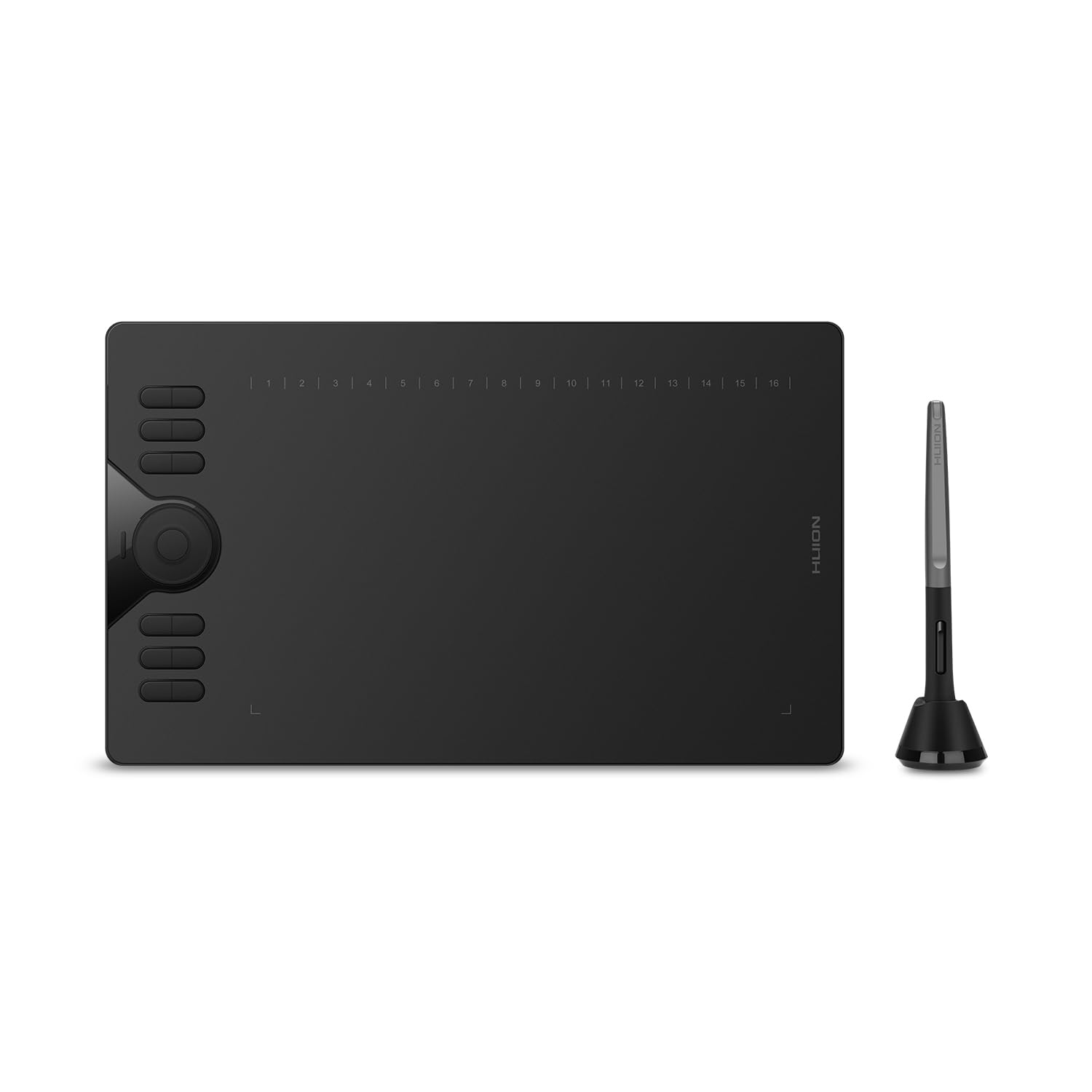
HUION HS610 pairs 8192 pressure levels and ±60° tilt with a multifunctional touch ring and plenty of shortcut keys for a natural drawing experience.
Why I picked it: I chose it because the tilt function and touch ring noticeably improved my shading workflow.
Best for: Animators and designers who value tilt response and quick canvas controls.
I find this a solid midrange value.
Pros
- 8192 pressure sensitivity
- ±60° tilt support
- Touch ring for zoom/scroll
- Twelve customizable shortcut keys
Cons
- Driver installation can be fiddly
- Some shortcuts may conflict
- Occasional packaging variance
My take
I swapped from older tablets to the HS610 and immediately noticed how natural shading felt with the tilt support. The touch ring is surprisingly useful for zooming and brush adjustments without reaching for keyboard shortcuts.
Setup required careful driver installation on my older Windows machine; once the drivers were sorted and any conflicting tablet drivers removed, the tablet performed smoothly in Photoshop and animation apps I use most.
For the price and feature set, I’ve kept this in my rotation for both quick sketches and longer digital painting sessions — it’s lightweight enough to carry and robust enough for everyday use.
5. XPPen Artist13.3 Pro (13.3″ Full‑Laminated Display, Adjustable Stand) – Best Pen Display
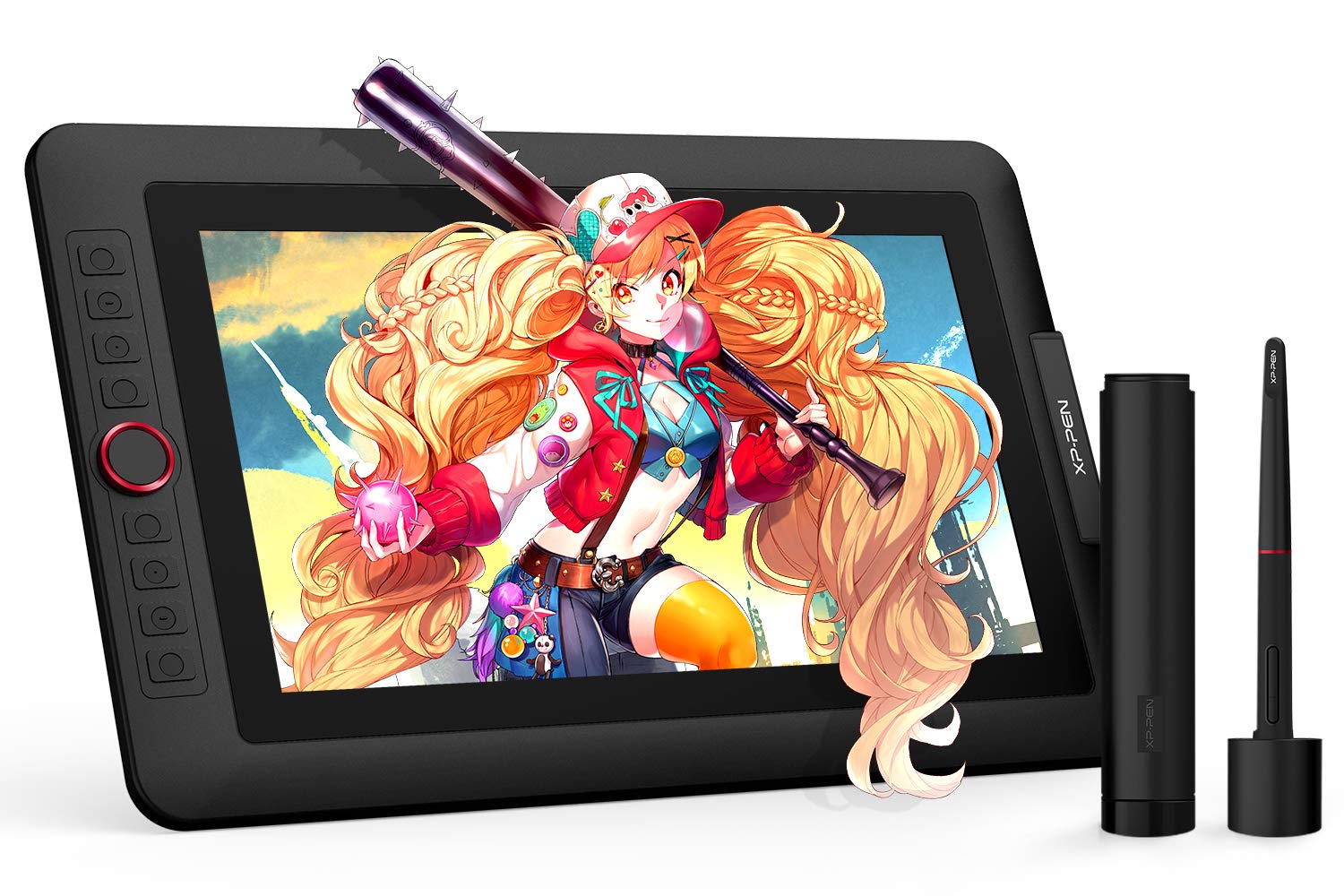
A fully‑laminated 13.3-inch pen display with a high color gamut, a tactile red dial, and handy shortcut keys for artists who prefer drawing directly on the screen.
Why I picked it: I picked it because the fully‑laminated screen and color accuracy make drawing directly on the display a pleasure.
Best for: Artists who want a display tablet without paying top‑tier prices.
I treat this as a more expensive, screen‑based choice.
Pros
- Fully‑laminated display (minimal parallax)
- Strong color gamut and FHD clarity
- Red Dial for quick adjustments
- Comes with adjustable stand
Cons
- Setup can be fiddly
- Initial pen jitter until driver tweaks
- Not as precise as premium brands
My take
I connected the Artist13.3 Pro to my laptop and was impressed by the nearly parallax‑free feel the full lamination creates — drawing directly on the pixels feels natural and immediate.
Color reproduction is vivid, which I appreciated when matching tones. The red dial and shortcut keys sped up my workflow once I mapped them to my most‑used commands.
The first setup had a learning curve: driver installation and a short support chat cleared up a jitter issue for me. After that, this display became one of my go‑to devices for compositing and color work when I need direct on‑screen control.
6. TEKFUN 15″ LCD Writing Tablet (Large Erasable Drawing Board) – Best for Kids & Notes
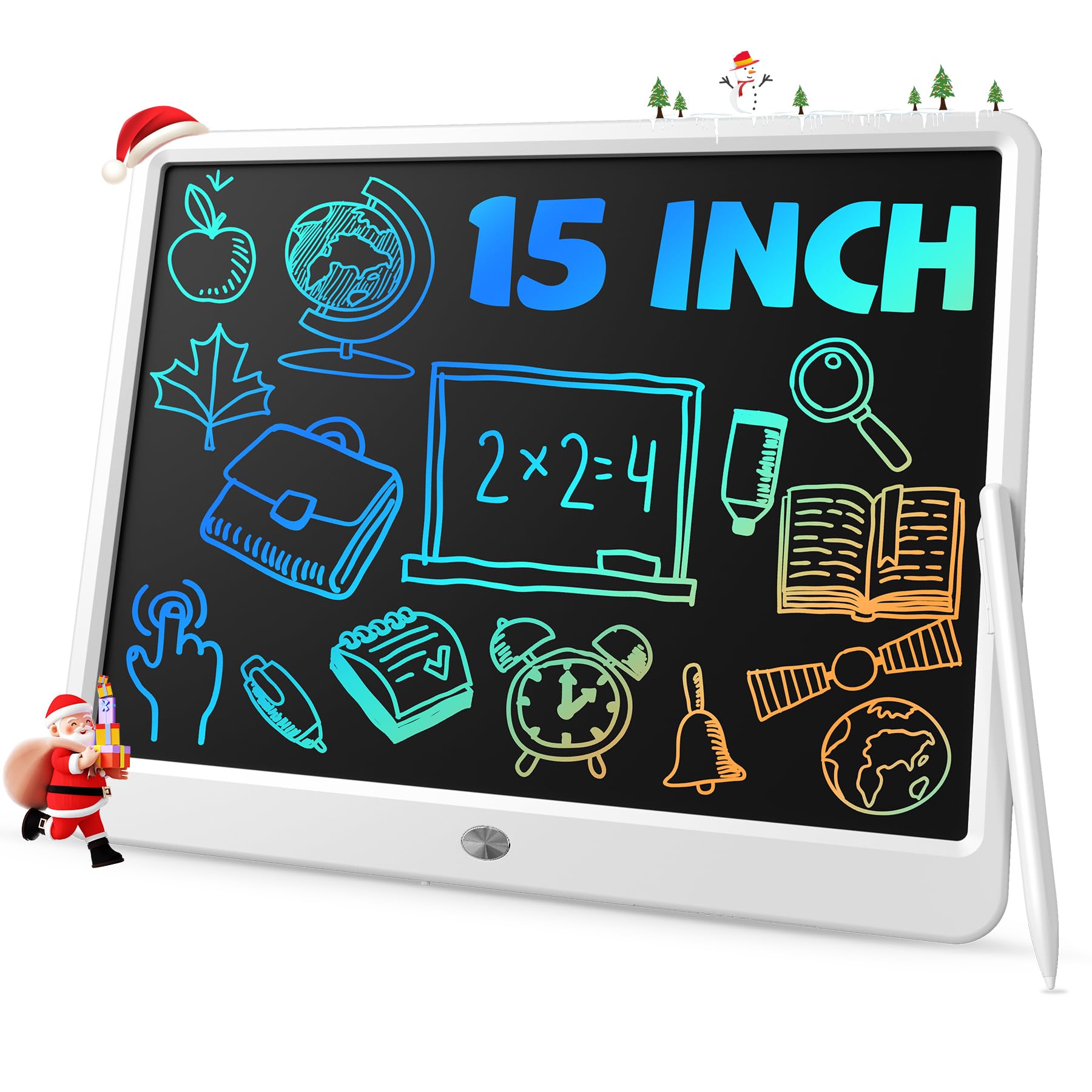
A simple, paper‑saving LCD writing board that’s ideal for kids, quick sketches, and jotting notes with a large, lightweight screen and an erase lock.
Why I picked it: I chose it because it’s a low‑friction, reusable board perfect for kids and quick sketches.
Best for: Kids, classrooms, travel, and anyone who wants to ditch scrap paper.
I view this as an inexpensive, paper‑saving gadget.
Pros
- Large 15‑inch drawing area
- Very lightweight and portable
- Instant erase and lock feature
- Durable and reusable
Cons
- Single monochrome writing color
- Pen must be tethered or stored
- Not pressure‑sensitive for art
My take
I handed this board to kids and they immediately took to it — the big surface gives plenty of room for letters, doodles, and practice drawings. It’s also perfect for quick reminders and meeting notes at my desk.
The erase button clears the whole screen, and the lock prevents accidental deletion, which I appreciated for longer notes. It won’t replace a pressure‑sensitive tablet, but for paperless scribbles and travel entertainment it’s extremely handy.
I do tie the pen to the board when packing it up to avoid losing it. For a low‑cost, durable solution to reduce paper waste, I keep one in the car and one by the kitchen.
How I Choose a Beginner Drawing Tablet
Active area & size
I look for an active area that matches how I draw — small tablets are portable but less forgiving for broad strokes, while larger areas give more room to move your arm.
If I plan to use a tablet on the go, I prioritize something slim and easy to slip into a bag.
- Small (compact): best for portability and tight workspaces
- Medium/large: better for sweeping strokes and painting
- Display tablets: draw directly on the image, but expect extra setup
Pen technology & pressure
I always check whether the stylus is battery‑free (EMR) or battery powered; battery‑free pens avoid charging and usually feel lighter.
Pressure sensitivity and tilt support directly affect how natural shading and line weight feel to me.
- 8K+ pressure levels give smooth transition control
- Tilt support helps with natural shading
- Battery‑free pens reduce maintenance
Drivers, compatibility & connectivity
I install drivers early in the setup process and remove conflicting tablet drivers to avoid issues.
If you want to draw on Android or Chromebook, I confirm the specific model’s compatibility before buying.
- USB‑C and OTG adapters expand device compatibility
- Check OS support: Windows, macOS, Linux, Chrome OS, Android
- Be prepared to download drivers from the manufacturer
Workflow extras
I value shortcut keys, dials, and a good pen holder because they shorten my time in menus and let me keep focus on the canvas.
A glove, replacement nibs, or a screen protector are small accessories that improve the drawing experience for little cost.
- Customizable hotkeys speed up repetitive tasks
- Gloves reduce palm friction and smudges
- Stand or adjustable mounts improve comfort for long sessions
Frequently Asked Questions
Do beginners need a pen display (screen) or is a non‑display tablet fine?
I prefer starting on a non‑display tablet for cost and learning fundamentals; a pen display is great once I want direct on‑screen control and color accuracy.
How important is pressure sensitivity for learning to draw digitally?
I find pressure sensitivity essential — it makes line weight and shading feel natural and speeds up learning brush control.
Can I use these tablets with Android or Chromebook devices?
I check each model’s compatibility: some tablets support Android and Chromebook via OTG or certified drivers, while others are desktop‑only.
Final Take
I recommend the Wacom Intuos if you want a straightforward, dependable starter tablet with bundled software. If you want more workspace without a big investment, the XPPen Deco 01 V3 is an excellent value.
For a display‑style experience, the Artist13.3 Pro gives a satisfying screen drawing surface once you work through driver setup. And for kids or quick notes, the TEKFUN LCD board is an easy, paperless option.
Whichever path you choose, focus on a tablet that matches how you like to draw — size, pen feel, and compatibility matter more than labels. Start drawing and iterate from there.