
I tested four desks across gaming, storage, and sit‑stand categories so you can pick the right setup for your space. Each pick reflects real use—assembly, stability, surface area, and features like RGB, hutches, and lift
I spent time assembling and using each desk to see how they perform for gaming, home office, and standing setups. My testing focused on stability, usable surface, build quality, and the small details that matter—mouse pads, cable routing, and accessories.
Below are four desks I relied on in different setups, with the situations where each one shines and the tradeoffs I ran into while using them.
If you want a full RGB gaming battlestation, the Eureka RGB desk brings lights and an integrated mouse pad. If storage and vertical organization matter, the Aquzee with a hutch wins. If I only needed sit‑stand capability without replacing my existing desk, the VariDesk converter was the quickest, most stable solution. For the largest flat workspace and accessory extras, the Eureka Captain Series is the go‑to.
1. Eureka Ergonomic Gaming Desk – Best for RGB Gamers
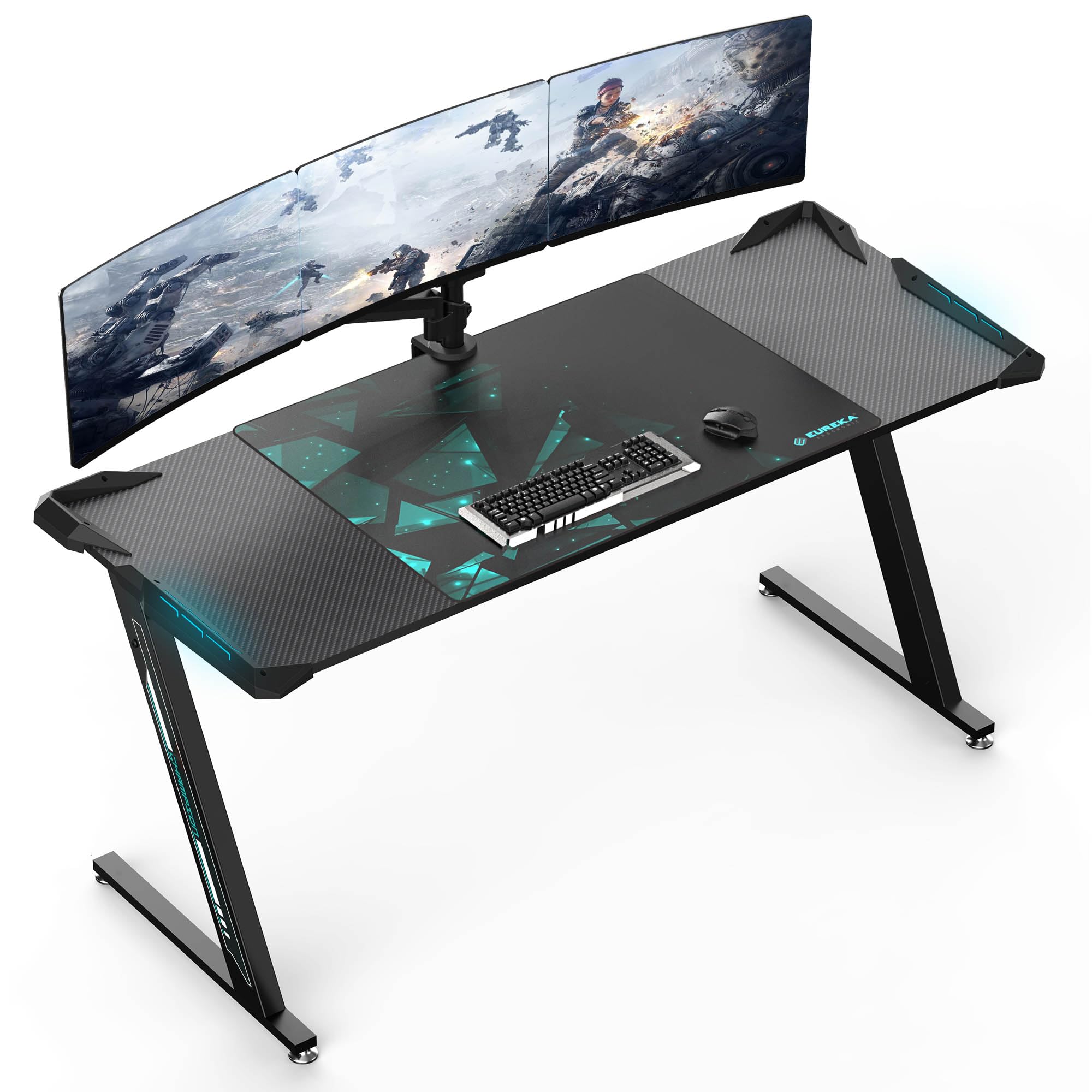
A wide gaming desk with carbon‑fiber finish, Z‑shaped steel legs, integrated RGB lighting, and a built‑in full‑width mouse pad.
Why I picked it: Large stable surface, RGB lighting, and integrated mouse pad make it a gamer‑first desk.
Best for: Gamers who want RGB flair plus a roomy surface for dual monitors.
Affordable midrange gaming desk with extra features.
Pros
- Spacious surface that fits multiple monitors
- Sturdy Z‑shaped steel legs
- Integrated full‑width mouse pad
- Customizable RGB lighting
Cons
- LED strips and add‑ons are stickered on
- Limited built‑in cable routing
- Depth feels a bit shallow for some setups
My take
I assembled this Eureka desk by myself and found the instructions straightforward; it took me roughly an hour and the pieces were labeled clearly. The Z‑shaped legs feel very solid—the whole top stayed rock‑steady under multiple monitors and peripherals.
The carbon‑fiber finish looks sharp and the oversized mouse pad is genuinely useful during long sessions. The RGB lighting cycles through colors and I was able to lock a color for a consistent look, though the decorative stripes are stickers you can skip if you want a cleaner appearance.
I did wish the desk had deeper cable management options; I ended up adding my own under‑desk tray. Also, the surface edge is a little close to my keyboard at times, so check depth against your monitor stands if you like lots of elbow room.
2. Aquzee Desk with Hutch and Shelves – Best for Storage
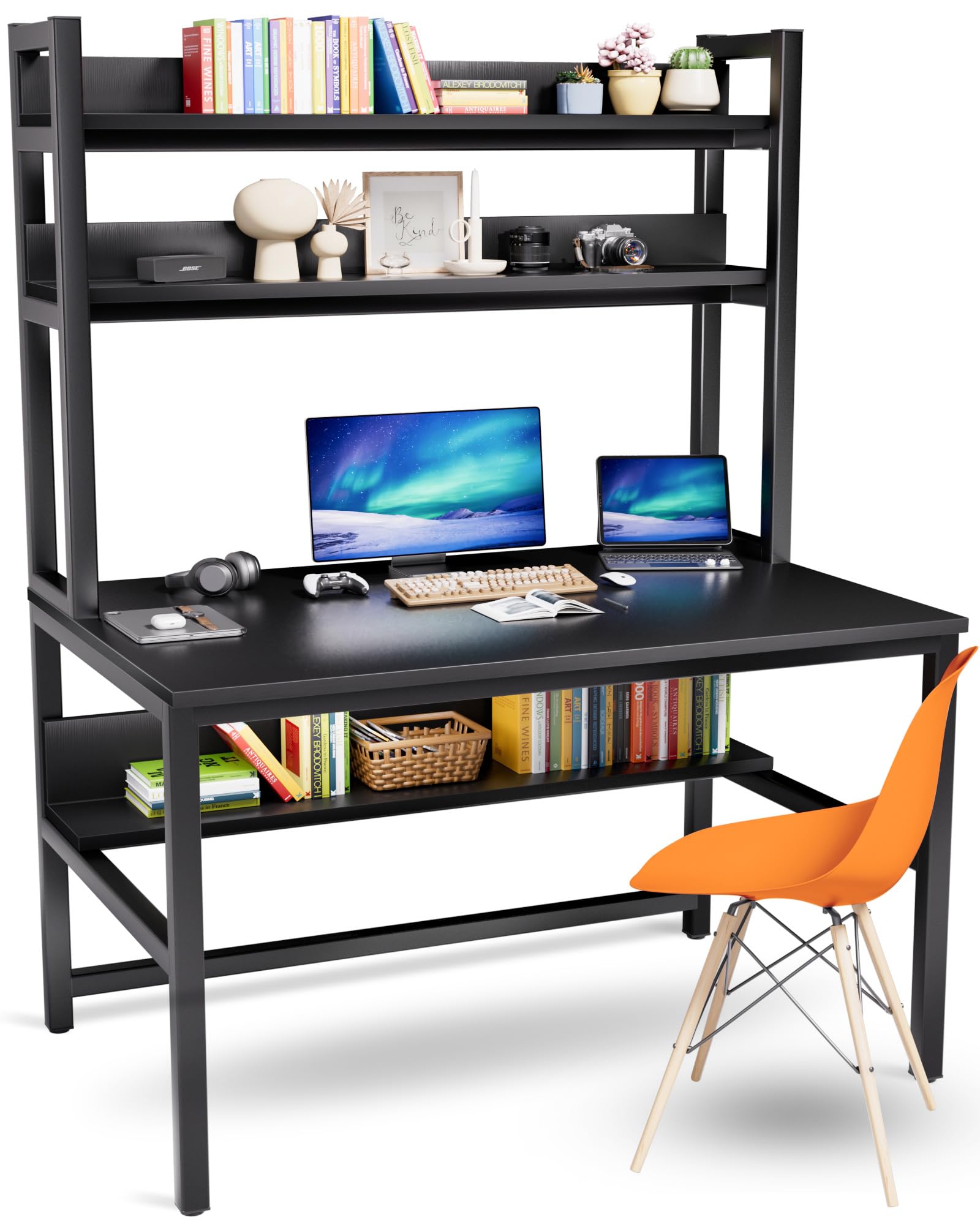
A compact desk with a tall hutch and open shelving that adds vertical storage without swallowing floor space.
Why I picked it: Generous built‑in shelving and a sturdy top for organized small spaces.
Best for: Small apartments and home offices that need vertical storage and a tidy footprint.
Value oriented—good storage-to-cost balance.
Pros
- Two‑tier hutch maximizes vertical storage
- Thick, waterproof desktop material
- Adjustable leg studs for leveling
- Tools included for assembly
Cons
- Can be heavy to move once assembled
- Shelf spacing may limit taller items
- Pictorial instructions require patience
My take
I put this Aquzee desk together solo and appreciated that the manufacturer included an Allen wrench, a long driver bit, and clear fasteners—assembly was about 30–40 minutes for me. I left bolts slightly loose during fitting, which made alignment much easier.
The hutch and under‑desktop bookcase give real usable storage; I was able to arrange books, plants, and reference materials without cluttering the main work surface. The actual clearance under the first shelf was a helpful surprise—slightly taller than listed—so mounting a monitor arm worked for my setup.
The surface material cleans easily and resists scratches, which I liked for a high‑use home office. If you plan to reposition the desk often, expect it to feel heavy, and take care to tighten fasteners after alignment to keep the frame stable.
3. VariDesk Pro Plus 36 – Best Sit‑Stand Converter
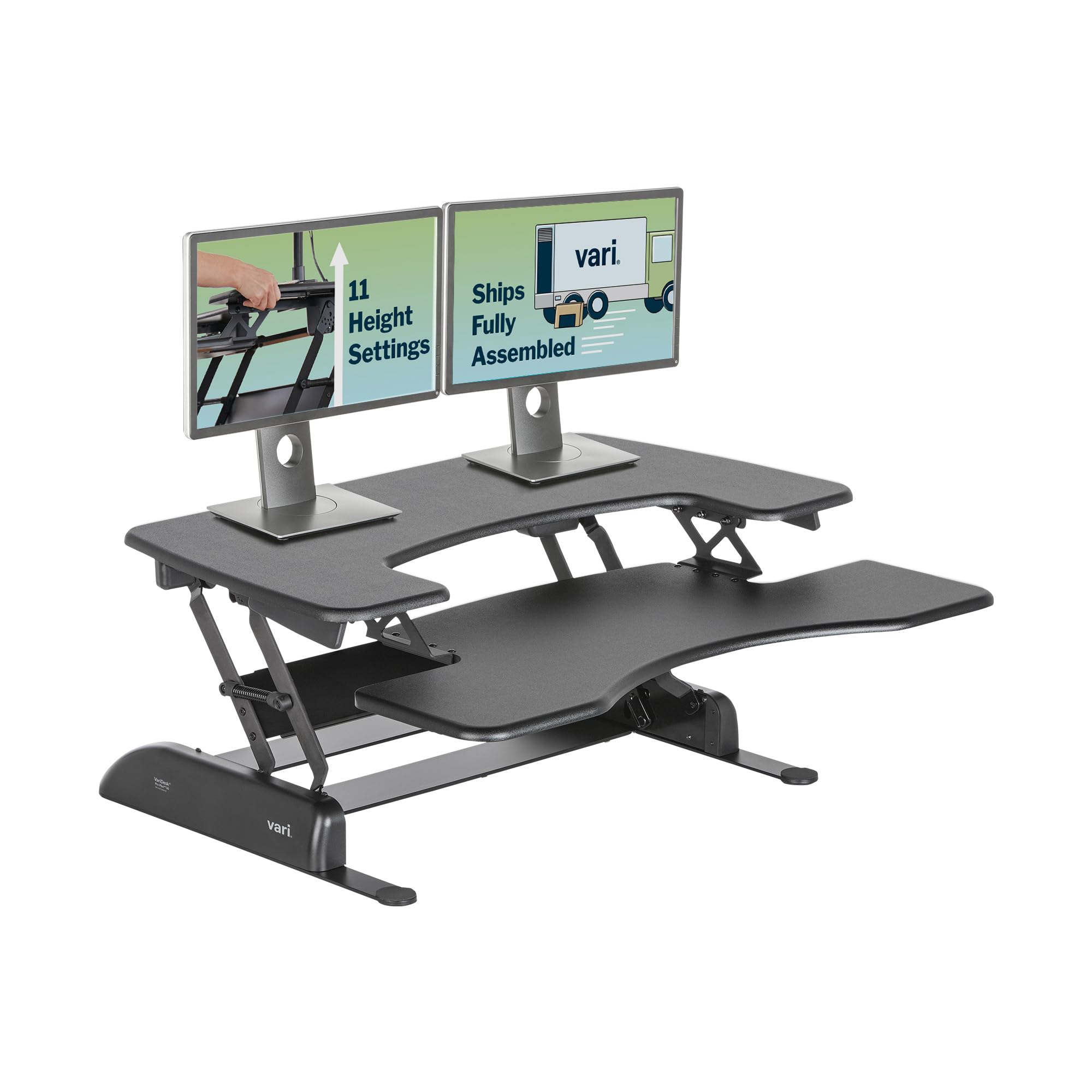
A two‑tier, fully assembled sit‑stand converter with spring‑assisted lift, multiple height settings, and strong construction.
Why I picked it: Instant sit‑stand conversion with smooth, reliable lift and no assembly.
Best for: Anyone wanting sit‑stand benefits without replacing their current desk.
Premium investment for hassle‑free sit/stand switching.
Pros
- No assembly—ready to use
- Smooth spring‑assisted lift
- Spacious dual tiers for monitor and keyboard
- Sturdy at any height
Cons
- More expensive than basic converters
- Consumes existing desk surface area
My take
I set this VariDesk on my existing workstation and immediately appreciated that there was zero assembly—just clear the top, place it down, and load it up. Raising and lowering takes two or three seconds and the motion is silent and controlled.
The dual‑tier layout gives plenty of room for a monitor and keyboard, and the spring‑assist makes height changes effortless. The unit moves slightly forward as it rises, which keeps me out of the way and feels ergonomically thoughtful.
This is a premium option, but I found it worth the cost when I wanted a durable, no‑fuss way to alternate between sitting and standing without buying a new motorized desk.
4. Eureka Captain Series Desk – Best for Large Setups
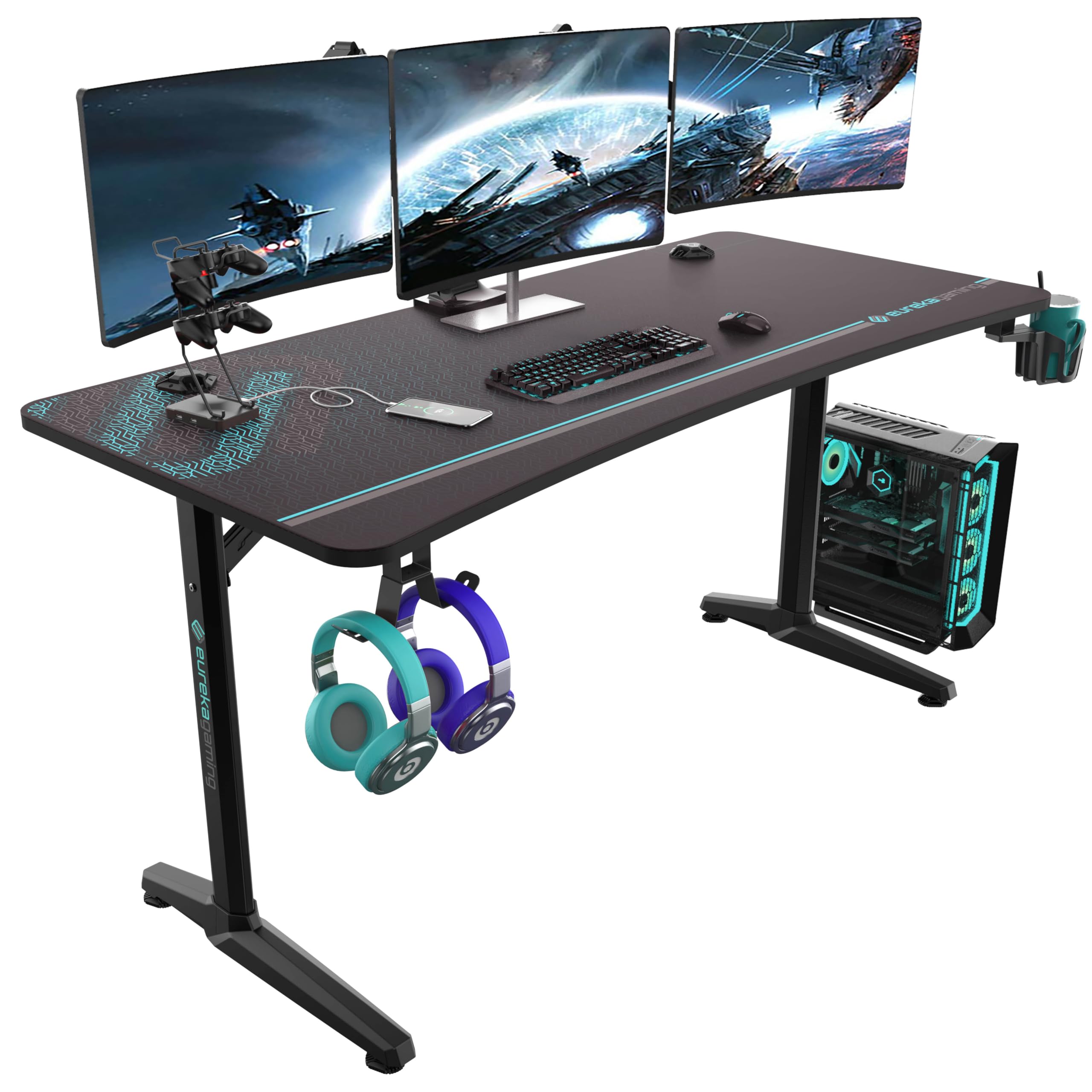
A large 60‑inch desktop with reinforced support, a full‑width mouse pad, and multiple accessory mounts for a roomy workstation.
Why I picked it: Huge usable surface plus included accessory hooks and USB ports for multi‑monitor setups.
Best for: Users who need a broad desktop for multiple monitors, audio gear, or consoles.
Solid midrange option for large workspaces.
Pros
- Very large desktop for multiple devices
- Full‑coverage mouse pad included
- Convenient cup holder and headphone hooks
- Reinforced support structure
Cons
- Work surface edges feel a bit sharp
- Accessory hub behavior can be unclear
- Instructions are mostly pictorial
My take
I put the Captain Series desk together and immediately noticed how much surface area I had—there’s room for multiple monitors, audio gear, and peripherals with space left over. The included oversized mouse pad is a simple but effective touch that keeps my mouse movement consistent.
The desk’s support structure feels engineered for stability; I loaded a few heavier items and didn’t see any wobble. The USB/stand accessory is handy for organizing controllers and hooking a headset, but I had to troubleshoot how to power or connect it in my setup—it’s useful, but not plug‑and‑play in every case.
One real caveat: the desktop edges are a bit sharper than I prefer. The included mat solves that where I rest my arms, but if you like to work without a mat, consider adding edge protection.
How I Choose an Ergonomic Desk
Key features I test
I look for surface area and depth to make sure your monitors, keyboard, and any peripherals fit comfortably without crowding.
Stability comes next: a desk must hold up under multiple monitors and repeated motion without wobble.
I also check built‑in extras—mouse pads, cup holders, headphone hooks, and USB hubs—because small conveniences change daily workflow.
- Surface size: measure your monitor stands and keyboard before you buy.
- Depth: prioritize deeper tops if you use monitor arms or need elbow room.
- Stability: look for reinforced frames, steel legs, or cross‑bracing.
- Extras: integrated mouse pads and hooks are nice, but inspect how they’re attached.
Assembly and setup
I time assembly and note whether tools are included and how clear the instructions are. Some desks ship with helpful driver bits; others expect your own tools.
When a desk arrives heavy or in multiple boxes, enlist help for upstairs deliveries—moving a finished desk by yourself quickly becomes a hassle.
- Leave bolts loose until all pieces align.
- Keep packaging for a short period in case you need to return or swap parts.
- Plan cable management before you drop equipment on the top.
Materials and durability
I prefer thicker tops and powder‑coated steel frames for long life. MDF tops are common and fine, but solid surfaces outperform them over many years.
Check the mouse pad and edge treatments: stitched edges last longer and protect the top from wear.
- Thicker desktop material resists sagging.
- Powder‑coated frames reduce rust risk.
- Stitched mouse pad edges avoid fraying.
Ergonomics and sizing
I test clearance under hutches and shelving for monitor arms and kneewell comfort. If you plan to stand, consider a sit‑stand converter or a motorized desk with appropriate height range.
Measure your office before ordering; a 60‑inch desk can overwhelm small rooms despite looking ideal for gear.
- Measure width, depth, and clearance before buying.
- For sit‑stand, decide between a converter or a full lifting desk.
- Account for legroom and chair travel path.
Frequently Asked Questions
Will these desks fit dual monitors?
Yes—both Eureka 60" desks and the VariDesk Pro Plus 36 provide enough surface and platform space for dual monitors. The Aquzee desk supports smaller dual setups but check depth and shelf clearance if you use large monitor arms.
How hard is assembly?
Assembly varies: the Aquzee and both Eureka desks took me about 30–60 minutes and included tools. The VariDesk arrives fully assembled and is ready to use out of the box.
Do the RGB lights and USB hubs require extra power?
Yes—RGB strips and accessory hubs typically need a power connection. I recommend testing the hub behavior before arranging gear; some hubs act as charge stations only unless connected to a powered USB source.
Final Take
After hands‑on testing, I’d pick the Eureka RGB desk if I wanted gaming flair and a built‑in mouse pad, the Aquzee desk if vertical storage is the priority, the VariDesk if I only needed sit‑stand capability without replacing my desk, and the Eureka Captain Series if I required the largest flat workspace with accessory hooks.
Decide which tradeoffs matter most—lighting and accessories, built‑in storage, or sit‑stand flexibility—and pick the desk that matches your daily workflow.