
I tested a range of webcams for clarity, audio, privacy, and ease of use. Here are the models I kept and why each earned a place on my desk.
I spent time installing and using each camera on laptops and a desktop to judge image quality, microphone performance, and day-to-day reliability. My picks focus on real-world use: video calls, streaming, and recording in mixed lighting and with common conferencing apps.
If you want straightforward 1080p clarity, a physical privacy cover, or true 4K detail, I explain which camera fits each need and why.
I compared image sharpness, autofocus, low-light correction, microphone clarity, mounting options, and software/driver behavior. For each model I prioritized how easy it was to get a clean picture and usable audio without wrestling with drivers or complex settings.
1. Logitech HD Pro Webcam C920 — Full HD 1080p, Autofocus, Dual Mics – Best Overall
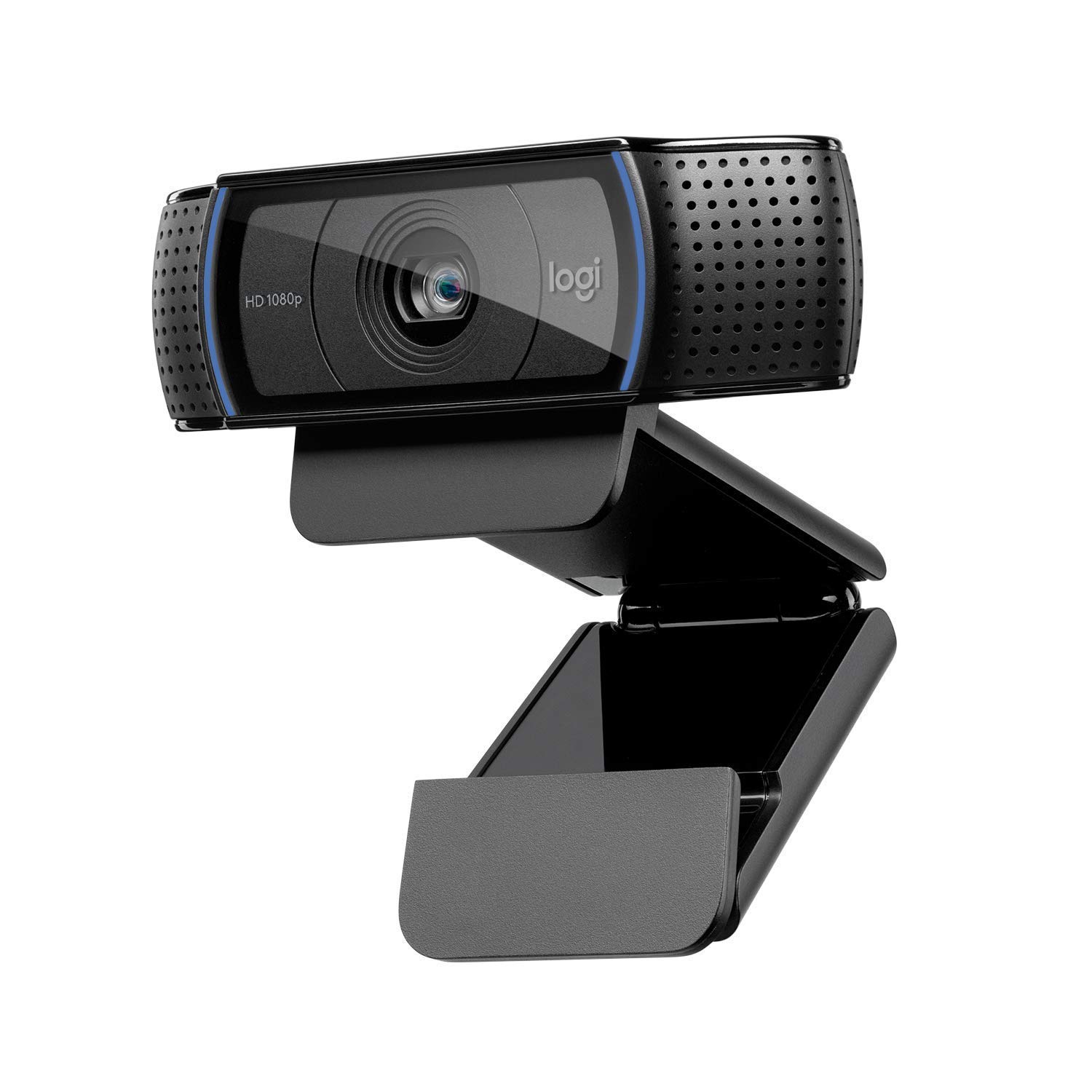
I kept returning to this camera for balanced image quality, dependable autofocus, and stereo sound. It’s a reliable all-rounder for work and recording.
Why I picked it: Consistent 1080p clarity, H.264 offload, and dependable dual mics.
Best for: People who need dependable Full HD calls and simple recording.
A midrange option that balances performance and long-term reliability.
Pros
- True 1080p clarity
- Glass lens with precise autofocus
- Dual mics with noise reduction
- H.264 encoding reduces CPU load
- Tripod-ready universal clip
Cons
- No physical privacy shutter
- Mirroring quirks at higher resolutions
My take
I run this camera between a Mac Mini and a MacBook Air and it behaved flawlessly; plug it in and the picture is sharp and true to life.
The five-element glass lens and autofocus keep faces crisp even when I move, and the dual mics capture natural stereo sound with useful noise reduction.
Because it supports H.264 compression, my machine doesn’t struggle during long recordings or streams — the camera handles most of the encoding work.
I also like that the mount sits securely on thick monitors and is tripod-ready, which made framing my shots easier when I recorded short clips.
2. Logitech C920S HD Pro Webcam with Privacy Shutter — 1080p Streaming Camera – Best with Privacy Shutter
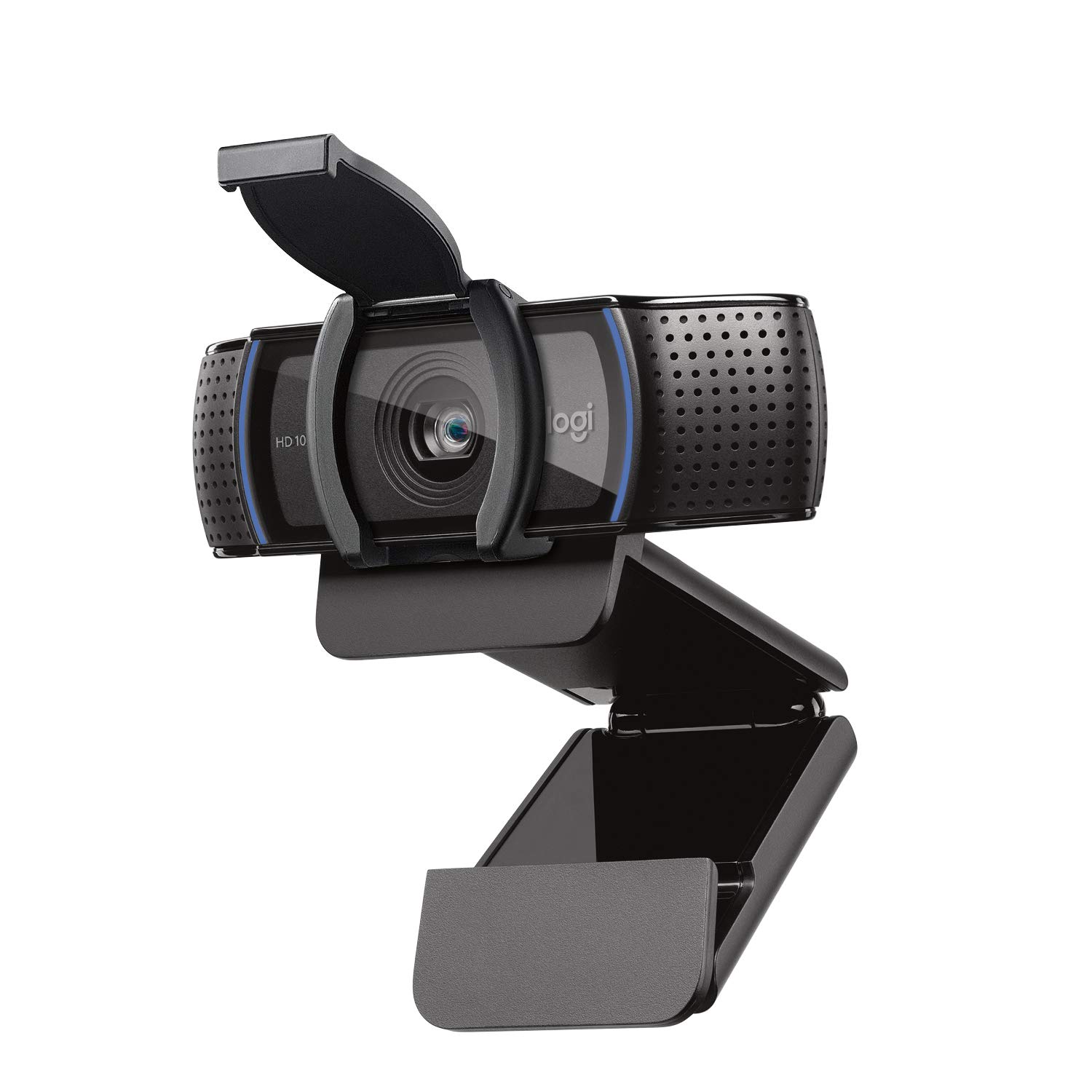
I chose this for the same strong image pipeline as the C920, with the added peace of mind of a physical shutter over the lens.
Why I picked it: 1080p quality plus a snug privacy cover for peace of mind.
Best for: Anyone who wants Full HD quality and a built-in physical lens cover.
A solid midrange webcam with a useful privacy feature.
Pros
- Full 1080p with privacy shutter
- Five-element glass lens
- Dual microphones and autofocus
- Good low-light correction
Cons
- Cable length may restrict placement
- Limited to 30fps on newer units
My take
The image is the same crisp 1080p you expect from Logitech, with natural color and steady autofocus that locks onto facial features.
I appreciated the snug sliding cover — it’s simple to open and close and eliminates the need for third-party lens blocks.
Setup was plug-and-play on both Windows and macOS, and the Capture app makes quick adjustments straightforward when I wanted tighter framing or light tweaks.
If you need higher frame rates for certain creative projects, note that modern units are generally capped at 30fps for 1080p and 720p modes.
3. Logitech C920S HD Pro Webcam — Full HD 1080p, Stereo Audio, Privacy Shutter – Best Reliable Performer
I recommended this when you want the dependable C920 image pipeline plus broad platform compatibility and straightforward setup.
Why I picked it: Familiar Logitech imaging and wide platform compatibility.
Best for: People who need a dependable, cross-platform webcam for meetings and recordings.
A dependable option that focuses on image quality and compatibility.
Pros
- Plug-and-play across platforms
- Privacy shutter included
- Good color and autofocus
Cons
- No software bundled in-box
- Support documentation can be awkwardly translated
My take
I found setup simple: plug it in, choose it as your camera, and you’re ready to go on Zoom, Skype, or FaceTime for Mac.
Image quality is consistently good in mixed lighting, with autofocus that keeps me centered and accurate color reproduction for recorded clips.
Logitech doesn’t include installation discs these days, so I downloaded their app when I wanted to fine-tune exposure and framing — that worked well but is an extra step.
On Linux I saw it recognized by the UVC driver with no fuss, which made it a convenient choice across different machines in my workflow.
4. Webcam for PC with Microphone — 1080P Auto-Focus, Noise-Reducing Mic, Physical Privacy Shield – Best Budget Performance
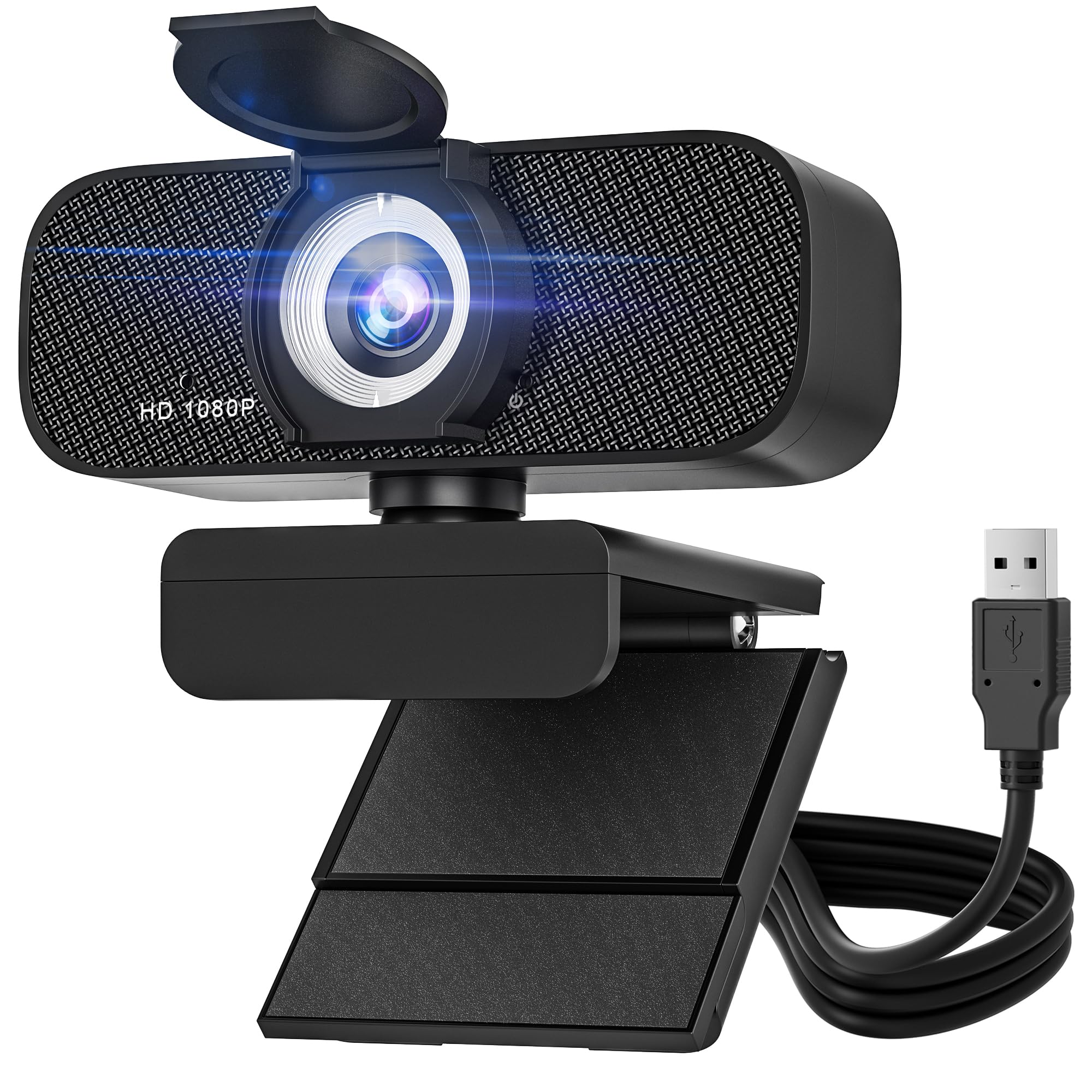
I was surprised by how much this low-cost camera delivers: fast autofocus, effective noise suppression, and features usually found on pricier models.
Why I picked it: Fast autofocus, dual noise-canceling mics, and a physical privacy shield at a budget price.
Best for: Students, remote workers, and streamers on a budget.
A budget-friendly pick that punches above its weight for general use.
Pros
- Dual noise-canceling mics
- Fast 0.35s autofocus
- Physical privacy shield
- USB-A and USB-C included
Cons
- Color balance can skew warm
- Not as sharp as premium glass lenses
My take
I plugged this into Windows 11 and it worked immediately — no driver install required, which is exactly what I want for quick setups.
Autofocus is snappy and kept me sharp when I moved around, and the built-in mic did a good job cutting background hum during calls.
The sliding privacy cover and rotating base for portrait/landscape switching are thoughtful touches that I used daily.
For occasional streaming or frequent video calls this webcam delivered clear, usable footage without demanding a lot from my laptop.
5. 1080P Full HD Webcam (TRAUSI) — Noise-Canceling Mic, Auto Light Correction, Privacy Cover – Best Value
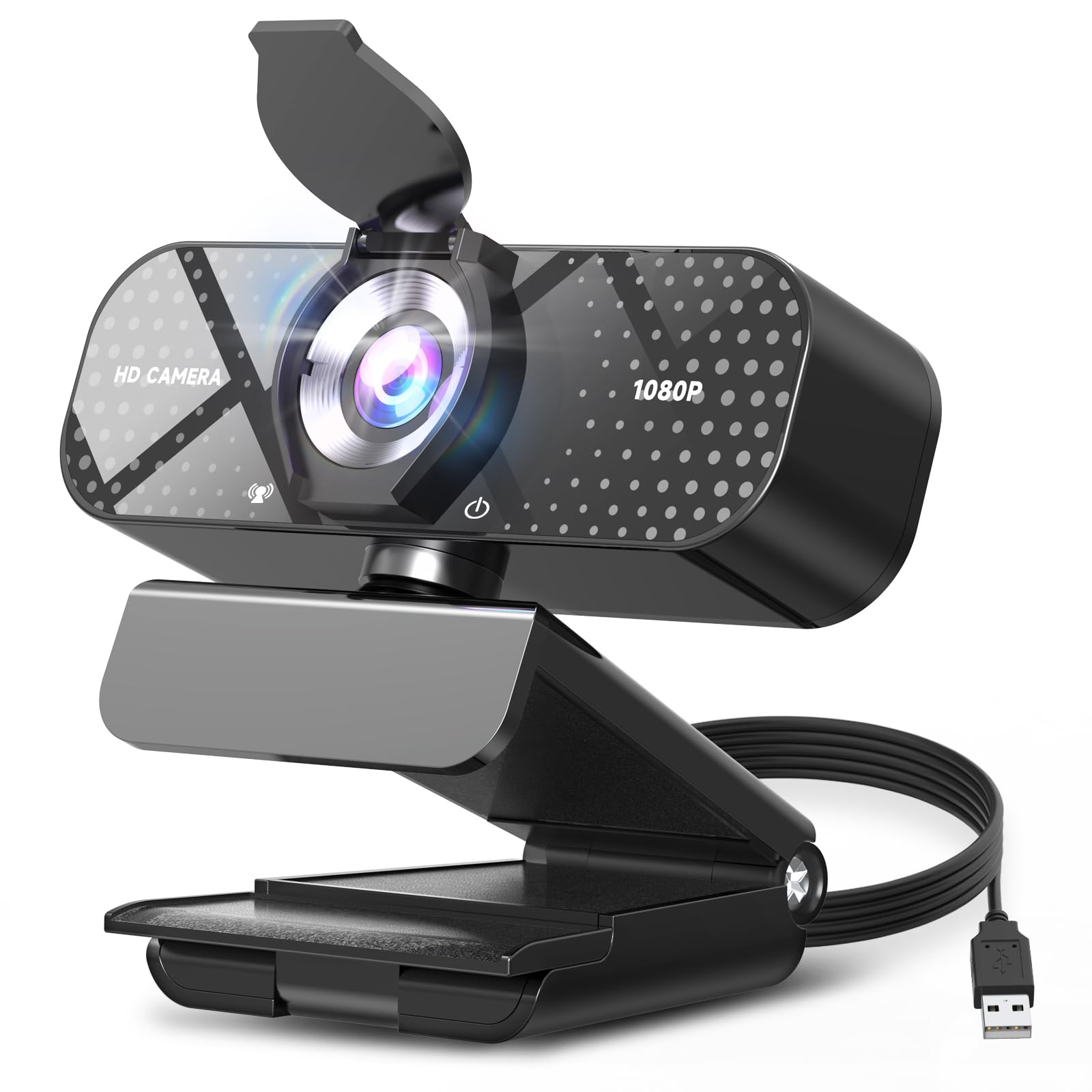
I kept this as a practical value pick: easy plug-and-play setup, dependable 1080p footage, and a privacy cover that works as expected.
Why I picked it: Balanced feature set with wide-angle view and noise-reducing mic at a low price.
Best for: Anyone who wants a no-fuss 1080p webcam with decent audio.
A value-oriented choice that covers the essentials well.
Pros
- 1080p with wide-angle lens
- Noise-reducing built-in mic
- Auto light correction
- Secure privacy cover
Cons
- Limited manual controls
- Auto settings can be aggressive
My take
I found the TRAUSI easy to install and it produced crisp 1080p video for meetings and class sessions.
Auto light correction kept my face visible in dim rooms, and the wide-angle lens was handy when I wanted to include a whiteboard behind me.
The microphone reduced background noise enough for clear speech on calls, and the sliding privacy cover felt sturdy.
If you want deep manual control over color or exposure, this one leans toward automatic adjustments rather than advanced tweaks.
6. AOC 4K Webcam — 4K Ultra HD, 90° FOV, Privacy Cover, USB-C & USB-A Adapter – Best for Ultra HD
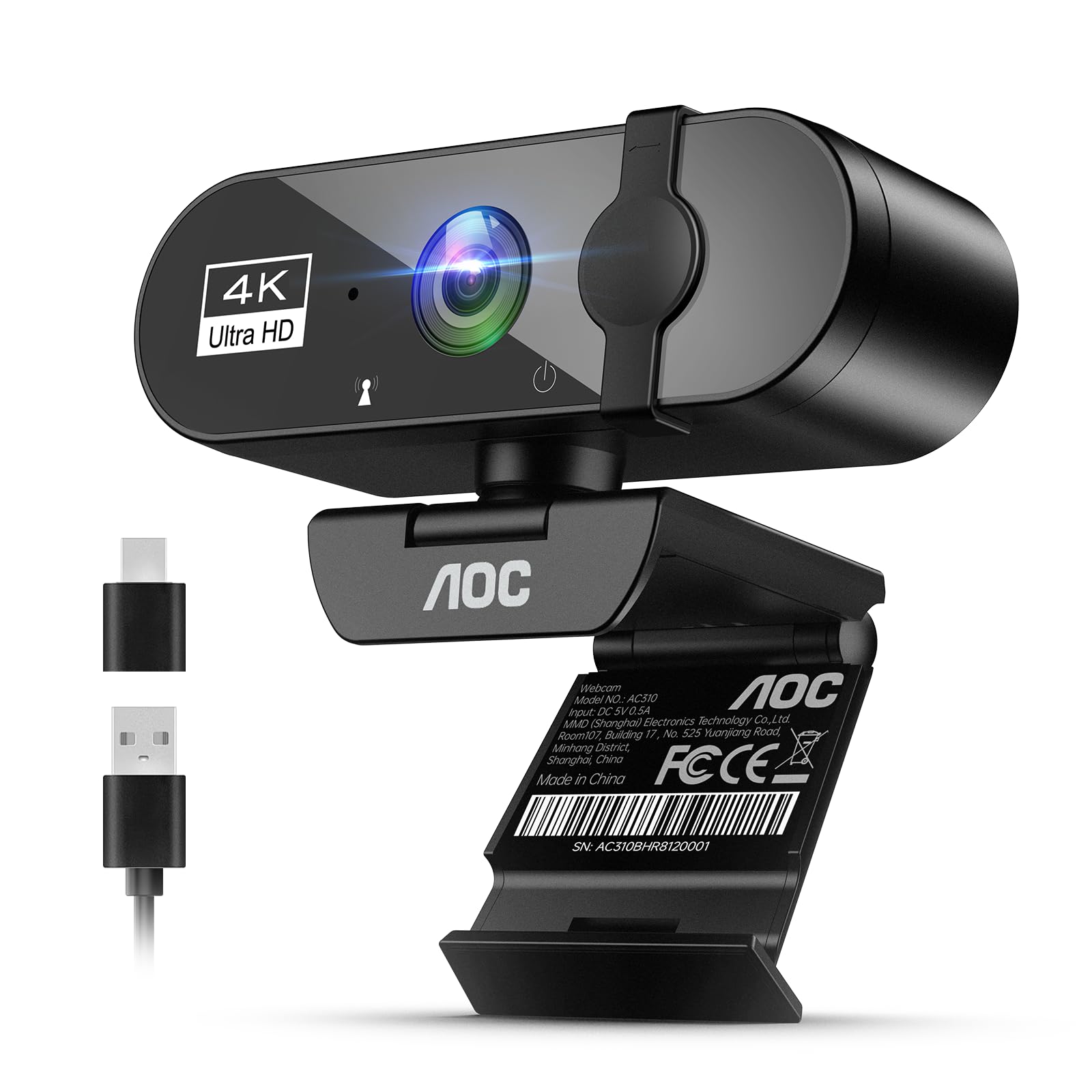
I picked this when image detail matters most — 4K gives a noticeable jump in clarity for presentations and high-detail streams.
Why I picked it: True 4K resolution and wide field of view for detailed, professional-looking video.
Best for: Presenters, creators, and small-group conferencing needing high detail.
A higher-detail option geared toward users who need ultra-high resolution.
Pros
- 4K Ultra HD detail
- Wide 90° field of view
- USB-C with adapter included
- Physical sliding lens cover
Cons
- Wide FOV can create slight fish-eye
- Occasional app compatibility hiccup
My take
The 4K image made a clear difference for recorded demos and product shots — I could crop in post and still retain detail.
Mounting is flexible: I used it clipped to a monitor and also on a tripod for overhead shots, and the included USB-C/USB-A adapter simplified connections.
Automatic light correction and the built-in mic worked well for general calls, though on one setup I had to reselect the device in Zoom to get it detected.
If you value maximum resolution for recordings or multi-person frames, this camera is worth testing with your specific apps and system.
How I Picked These Webcams
Resolution and Frame Rate
I prioritized cameras that deliver a clear picture at the resolution I actually use. For most remote work, 1080p at 30fps provides a sharp, efficient image without overloading your CPU. If you create detailed tutorials or record product demos, 4K is worth considering for the extra clarity.
Higher frame rates are useful for fast motion or certain types of streaming, but many modern webcams are capped at 30fps for 1080p — check the spec if you need 60fps.
- 1080p/30fps: best balance of quality and CPU use
- 4K: ideal for recording and cropping, needs more bandwidth
- Check whether higher fps are supported on modern units
Microphone and Audio
I judged microphones on clarity and background noise reduction. Built-in mics are convenient, but if you demand broadcast-quality audio, a dedicated USB mic will still outperform an onboard option.
Dual mics help create a natural stereo image, and hardware noise suppression reduces room hum during calls.
- Dual mics improve natural sound capture
- Noise-canceling mics help in noisy environments
- Consider a separate mic for podcasting or streaming
Autofocus and Low-Light Performance
Autofocus matters if you move or demonstrate products on camera. I looked for cameras that reacquire focus quickly without hunting.
Automatic light correction is a big usability win; it prevents a dark face from ruining a call when the room lighting changes.
- Fast autofocus keeps you sharp when moving
- AI or auto light correction helps mixed lighting
- Manual controls are useful if you prefer fixed exposure
Privacy and Mounting
A physical privacy shutter gives me immediate control over the lens; it’s my preferred privacy solution versus software toggles.
Mounting flexibility — a clip that fits thick monitors and a tripod thread — makes framing easier across multiple setups.
- Physical shutter adds simple, reliable privacy
- Tripod thread is handy for more complex setups
- Check cable length and included adapters for your desk
Compatibility and Software
I verified that each camera worked without drivers on Windows and macOS wherever possible. Logitech’s software is handy for fine-tuning, but it’s not always required.
If you use Linux or unusual conferencing setups, confirm UVC/plug-and-play support before committing.
- Prefer webcams that are true plug-and-play
- Downloadable apps can add controls but aren’t mandatory
- Confirm app compatibility for business platforms like Zoom or Teams
Frequently Asked Questions
Will an external webcam be noticeably better than my laptop’s built-in camera?
In my experience, yes — an external webcam with a glass lens, dedicated autofocus, and better sensors typically produces sharper, truer colors and better low-light performance than most built-in laptop cameras.
Do I need a microphone if the webcam has one built in?
It depends on your needs. I use built-in mics for casual calls and backups, but I switch to a dedicated USB or XLR mic for podcasting, interviews, or streams where audio quality matters most.
How do I get the best image from any webcam?
I position the camera at eye level, use soft front lighting or a ring light, reduce bright backlights, and let the camera’s auto light correction do the rest. When available, I tweak exposure and white balance in the vendor’s software for a cleaner look.
Final Take
I chose these webcams because each solved a common problem I faced: better image clarity, usable onboard audio, or added privacy without fuss.
If you want a single dependable pick for everyday work, the Logitech C920 family remains my go-to. For maximum detail, the AOC 4K is the choice when resolution matters. For budget-conscious setups that still perform, the SZGIARUY and TRAUSI models offer surprising value.
Whichever you pick, prioritize a camera that works plug-and-play with your system and gives you the image and mic quality you need from day one.